


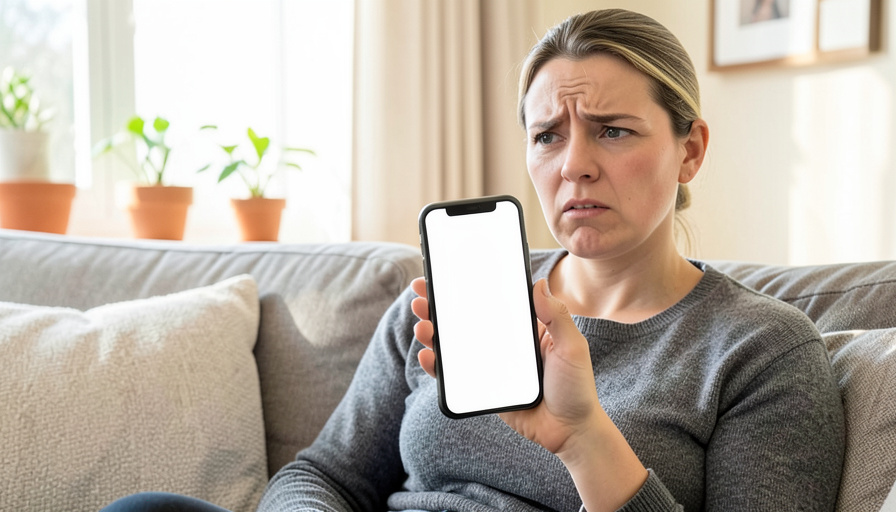
You know the loop. A box slides up asking you to sign in to your Apple Account, you carefully type your password, it disappears, and a few minutes later it is back. There is no public scoreboard of how often each cause is to blame, so treat any exact percentages you see with suspicion. What is clear is the pattern: the pop-up keeps returning because the device cannot complete the sign-in, so it keeps asking. It is almost never a sign your account is compromised. Something specific is blocking the handshake, and once you clear it, the prompts stop. Here are the usual triggers and the fixes that break the cycle.
Your Apple Account, still widely called your Apple ID, ties your device to iCloud, the App Store, and more. When any of those cannot verify who you are, the system nudges you to sign in again, and if the underlying block is still there, the nudge repeats. The trick is to fix the block, not to keep re-entering the password.
What the sign-in loop means
The loop is a stuck authentication, not a virus. Your device is trying to confirm your Apple ID with Apple’s servers, and something is stopping it from finishing, so it asks again. Common blockers include a password that changed recently, a half-finished software update, a stuck app download, a missing payment method, or a wrong clock on the device. Because the prompt looks the same no matter the cause, the loop feels random, but each version has a specific fix. Work down the list below and stop when the pop-ups do.


Restart, and enter your current password
Start with the two quickest fixes. Restart the iPhone fully, off for about thirty seconds, then back on, which clears a temporary glitch that keeps the sign-in from completing. Then, when the prompt returns, enter your current password, taking care that it is the latest one. If you changed your Apple Account password recently on another device or on the web, the phone may still be trying the old one. Getting the right password in, and completing any two-factor verification code it asks for, resolves a large share of these loops on its own.

Clear a stuck app update or download
A download that jammed is a frequent, hidden cause. If an app update or install got stuck, the App Store can keep demanding you sign in to authorize it, over and over. Open the App Store and your home screen, look for an app that is stuck updating or shows a paused download, and pause and resume it, or delete and reinstall it. Making sure iOS itself and your apps are fully updated, with nothing hung mid-download, removes the request that was firing on repeat.
Make sure a valid payment method is on file
This one surprises people: a missing or declined payment method can trigger endless verification prompts, even if you never buy anything. Apple wants a valid method on the account, so if your card expired or was removed, the system may keep asking you to verify. Go to your Apple Account settings, open the payment section, and add or update a valid payment method. In many cases, putting a working card on file, even one you do not plan to use, ends the loop that nothing else would.
Fix the date, time, and network
Authentication depends on your device agreeing with Apple’s servers about the current time, so a wrong clock breaks it. In Settings, set date and time to update automatically, and confirm the phone has a solid internet connection, since a flaky network can also stall the sign-in and restart the loop. These are small, easy settings to overlook, and a device stuck on the wrong time or a dropping connection will keep failing to verify no matter how many times you type your password.
Update iOS, then sign out and back in as a last resort
If the loop started right after a software update, a bug may be the cause, and Apple usually patches these in the next release, so install any pending iOS update. When nothing else works, the last resort is to sign out of your Apple Account in Settings, restart the device, and sign back in, which forces a clean reconnection. Do this carefully, since signing out affects iCloud syncing, and choose to keep a copy of your data on the device when prompted. A clean sign-in often clears a loop that survived every smaller fix.
Is it Apple, or a phishing pop-up?
One important check before you type anything. A genuine Apple sign-in request appears as a system prompt on your device or in Settings, not as a pop-up inside a web page, a text message link, or an email. If a message asking for your Apple Account password or a verification code arrives that way, treat it as phishing and do not enter anything. Only type your password in Settings under your name, or at the official Apple Account website you opened yourself, and never share a verification code with anyone, since Apple will not ask you for it.
What To Know
- The sign-in loop means your device cannot finish authenticating your Apple Account, not that you are hacked.
- Restart the phone and enter your current password, completing any two-factor code, which fixes many cases.
- A stuck app update or download, or a missing or declined payment method, are common hidden triggers.
- Set date and time to automatic, confirm a solid connection, and install any pending iOS update.
- A real Apple prompt is a system dialog, not a web or email pop-up, so treat those as phishing and never share a code.
Frequently Asked Questions
Why does my iPhone keep asking me to sign in to my Apple Account?
Because it cannot complete the sign-in, so it keeps prompting. The usual blockers are a recently changed password the phone has not caught up with, a stuck app update or download, a missing or declined payment method, or a wrong date and time. It is rarely a sign of hacking. Restart the device, enter your current password and any verification code, and check for a stuck download or a payment method that needs updating.
How do I stop the Apple ID verification pop-up?
Work through the common causes in order. Restart the iPhone, then enter your current password and complete any two-factor code. Check the App Store for an update or download stuck mid-install and clear it. Make sure a valid payment method is on your account. Confirm date and time are set to automatic and your connection is stable. If it started after an update, install the latest iOS, and only as a last resort sign out and back in.
Does a missing payment method cause Apple ID sign-in loops?
It can, and it catches people out. Apple expects a valid payment method on the account, so if your card expired or was removed, the system may keep asking you to verify even when you are not buying anything. Open your Apple Account payment settings and add or update a working method. In many cases, putting a valid card on file, even one you do not intend to use, ends prompts that no other fix would clear.
Is the Apple ID sign-in request a scam?
A real Apple request appears as a system prompt on your device or inside Settings. If a request for your password or a verification code shows up as a pop-up in a web page, a text link, or an email, it is almost certainly phishing, and you should not enter anything. Only type your password in Settings under your name or at the official Apple Account site, and never share a verification code, because Apple does not ask you to hand it over.
Should I sign out of my Apple Account to fix the loop?
Only as a last resort, after the simpler fixes fail. Signing out in Settings, restarting, and signing back in forces a clean reconnection that can clear a stubborn loop. Because signing out affects iCloud syncing, do it carefully and choose to keep a copy of your data on the device if asked. Try restarting, updating your password, clearing stuck downloads, and checking your payment method first, since those solve most cases without signing out.
What To Do Next
Run the fixes in order: restart and enter your current password, clear any stuck download, add a valid payment method, check date and time, and update iOS. Watch for phishing, since a real prompt is a system dialog, not a web pop-up. For help getting back into a locked account, see our guide to Apple ID recovery key versus a recovery contact, and the technology section has more on keeping your Apple devices running smoothly.