


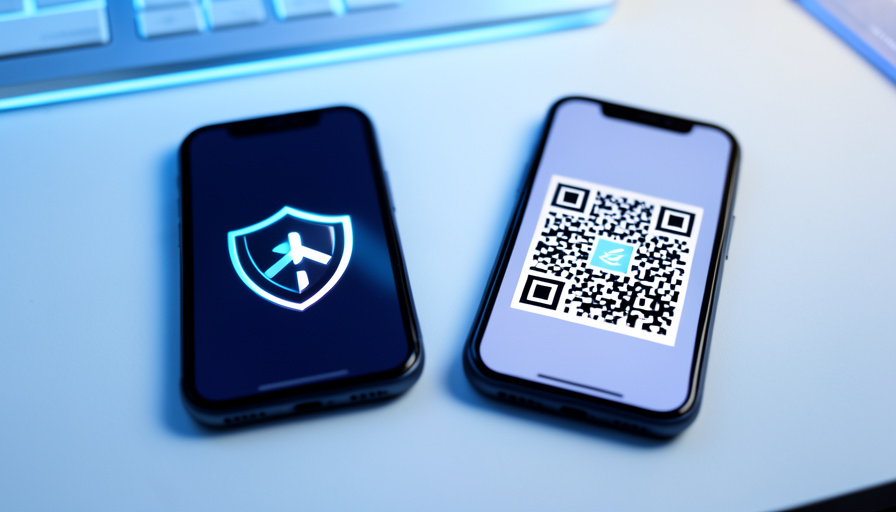
Getting a new phone is the moment two-factor authentication turns from a quiet helper into a potential lockout. If you use Google Authenticator or Microsoft Authenticator and you deliberately keep your codes off the cloud, the apps behave differently when it’s time to move. One was built to hand your codes to a new device offline. The other pushes you toward its cloud, and gets awkward when you won’t. Knowing which is which, before you wipe the old phone, is the whole game.
This is not a “which app is more secure” debate. Both generate the same standard codes. The question is narrower and more practical: when you migrate to a new phone without a cloud backup, which app gets you there, and where does each one leave you stranded? Here’s the honest breakdown.
Quick Answer
Google Authenticator can move your codes without any cloud, using a built-in QR export from the old phone to the new one. Microsoft Authenticator has no offline export at all; it relies on encrypted cloud backup tied to your Microsoft account, and restores only onto the same platform. So if you refuse cloud backup, Google Authenticator transfers cleanly as long as your old phone still works, while Microsoft Authenticator leaves you re-adding every account by hand.
Google vs Microsoft Authenticator: Transfer at a Glance
| Transfer factor | Google Authenticator | Microsoft Authenticator |
|---|---|---|
| Offline export | Yes, via QR codes | No export of codes |
| Cloud backup | Optional (Google account) | Required for transfer |
| Needs old phone | Yes, to show the QR | No, if cloud backup is on |
| Cross-platform restore | Works via QR | Same platform only |
| Best for | Offline, no-cloud users | Users who accept cloud backup |
How Google Authenticator moves your codes


Google Authenticator has an offline transfer built in. On the old phone you open the menu, choose Transfer accounts, then Export accounts, and pick which ones to move. The app packs them into one or more QR codes, and on the new phone you choose Import accounts and scan. Nothing touches the internet, which is exactly what the no-cloud crowd wants. One catch to know up front: each QR code holds up to about ten accounts, so a big list produces several codes to scan in turn.
Google also added optional cloud sync to a Google account, which backs codes up automatically when you sign in. You can leave that off and rely purely on the QR export. The one hard requirement is that your old phone has to still work and be in your hands, because it is the device that displays the QR. Full steps live in Google’s Authenticator help.
How Microsoft Authenticator moves your codes

Microsoft Authenticator takes the opposite approach. It has no feature to export your codes as a QR or a key, so there is no offline hand-off between phones. Instead it offers encrypted cloud backup tied to a personal Microsoft account, and on iOS it uses iCloud. You turn on backup on the old phone, sign in on the new one, and restore. When you actually use the cloud, it is the smoother of the two.
The limits matter for anyone avoiding the cloud. Per Microsoft’s own backup guidance, you can only restore onto the same device type, so a backup made on an iPhone will not restore to an Android phone. And with no cloud backup at all, there is no shortcut: you re-add every account by hand through each service’s own security settings.
Which wins if you skip cloud backup
For the specific goal of moving 2FA without cloud backup, Google Authenticator is the clear winner. Its QR export was designed for exactly this, letting you migrate device to device with nothing stored online. Microsoft Authenticator’s strength is the cloud backup you are choosing not to use, which leaves you with the slow manual path.
That does not make Microsoft Authenticator worse overall. If you are comfortable with encrypted cloud backup, its restore is genuinely convenient, and its push-approval sign-ins for Microsoft accounts are excellent. But judged only on the no-cloud transfer, Google’s offline export is the feature that saves your afternoon.
The scenario that breaks both: no old phone

Here is where both apps fail equally, and where most of the horror stories start. Search any tech-support forum and the same post repeats: someone set up a new phone, wiped or lost the old one, and only then discovered their codes did not come along. Threads in communities like r/ITSupport and r/Office365 are full of it.
The reason is that a code secret cannot be pulled back out of either app after the fact. With no old phone, no cloud, and no saved backup codes, the only route left is each individual service. You log into the website, go to its security or 2FA settings, and disable then re-enable two-factor to generate a fresh secret for your new phone. That only works if you can still sign in, which is why the account recovery or backup codes each service offered at setup are the real safety net, not the authenticator app.
Edge cases worth knowing
- Partial Google export. If the new phone shows only some accounts after scanning, it’s the roughly ten-per-QR limit. Export in batches and scan each code.
- A QR that won’t scan. A cracked screen, low brightness, or glare can block the read. Clean the screen, raise brightness, and hold steady, or fall back to the service-by-service reset.
- Cross-platform Microsoft moves. Switching between iPhone and Android breaks Microsoft’s restore, so plan to re-add accounts manually if you change ecosystems.
- Locked accounts. If a service locks you out during the switch, its recovery flow, not the authenticator, is what gets you back in.
The one habit that prevents lockouts

Whichever app you use, the rule is the same: move your codes before the old phone is gone, not after. Do the Google QR export or the Microsoft cloud restore while both phones are working, confirm the new phone generates correct codes, and only then wipe or trade in the old one. And save the backup or recovery codes each service gives you at setup somewhere safe, like a password manager. Those codes are the one thing that survives a lost phone, a refused cloud, and a broken QR all at once.
How We Compared Them
We looked only at the migration experience for someone who does not want cloud backup, since that is the reader this question comes from. The transfer mechanics come from Google’s and Microsoft’s own support documentation on exporting and backing up accounts, and the failure cases are drawn from the recurring lockout posts in support communities like r/ITSupport, r/Office365, and r/Outlook. We prioritized what actually happens when you move phones, not a general feature scorecard, because the transfer is where people get burned.
The Bottom Line
If keeping your 2FA off the cloud matters to you, Google Authenticator is the better fit, because its offline QR export moves your codes with nothing stored online. Microsoft Authenticator shines when you accept its cloud backup and stumbles when you don’t, since it offers no manual export. Either way, the app is not your safety net. Transfer while the old phone still works, keep each service’s backup codes in a password manager, and a new phone becomes a five-minute task instead of a lockout. For the related headache when a carrier switch is involved, see our guide on how an eSIM switch can break your 2FA, and the technology section has more on account security.
Frequently Asked Questions
How do I move 2FA to a new phone without cloud backup?
Use Google Authenticator’s offline export. On the old phone, open the menu, choose Transfer accounts, then Export accounts, select your accounts, and the app creates QR codes. On the new phone, choose Import accounts and scan them. Nothing is stored online. Microsoft Authenticator has no offline export, so without cloud backup you must re-add each account manually through every service’s security settings.
Can Microsoft Authenticator transfer codes without the cloud?
No. Microsoft Authenticator does not let you export your codes as a QR or key, so there is no offline transfer. Its only migration path is encrypted cloud backup tied to your Microsoft account, and that restore works only onto the same platform. If you skip cloud backup, you have to set up two-factor again on each account from scratch.
What happens if I lose my old phone before transferring?
Neither app can recover the codes, because the secret cannot be extracted after the fact. With no old phone, no cloud, and no saved backup codes, you have to reset two-factor on each service individually by logging into its website and disabling then re-enabling 2FA. That only works if you can still sign in, which is why saved backup codes are essential.
Is Google Authenticator’s QR export safe?
Yes, and it is more private than cloud sync because nothing leaves your devices. The one precaution is that the QR code contains your account secrets, so scan it directly on your new phone and do not photograph it, share it, or leave it displayed where someone could capture it. Once the new phone has imported the accounts, the export is done.
Should I turn on cloud backup anyway?
It is a personal trade-off. Cloud backup makes phone changes almost effortless and protects you if a phone is lost, but it stores your credentials with the provider, which is the thing no-cloud users want to avoid. If you keep the cloud off, commit to the habits that replace it: export before you switch, and store each service’s backup codes in a password manager.