


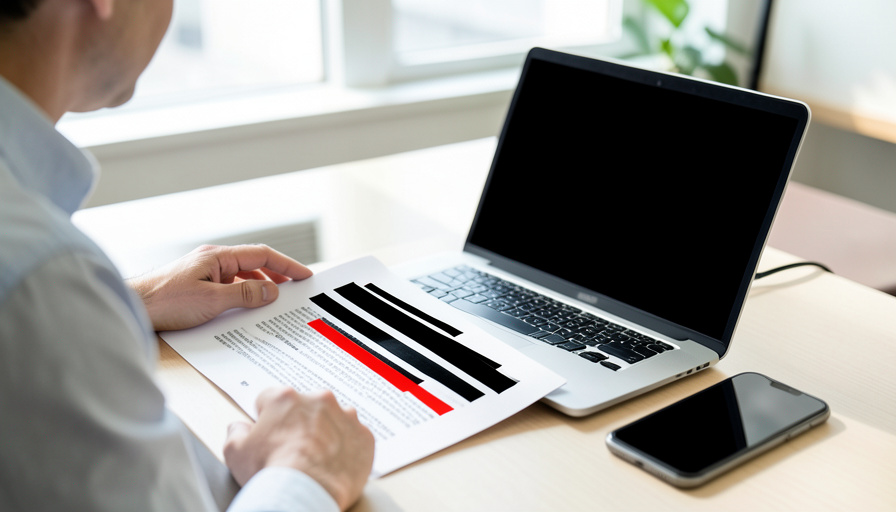
Screenshots leak more than you think. A quick capture of a receipt, a bank alert, or a support chat can carry a card number, an email, a home address, or a face straight into a group thread, and you rarely notice until it is already sent. Manual blurring is the usual answer, and it works right up until the one time you miss a detail. These eight tools take the guesswork out by detecting sensitive information for you, though it is worth being honest that only some genuinely automate the detection while others still lean on you to draw the box. Here is how each one handles it, and which fits how you share.
The list runs from a desktop screenshot heavyweight to an on-device privacy app to enterprise platforms, so match the tool to your work rather than grabbing the first name you recognize. We flag clearly where a tool truly auto-detects and where it does not.
What auto-redact means in practice
There is a real difference between two things that look alike. Manual redaction means you draw a box over the sensitive part yourself, which is only as reliable as your attention. True auto-redaction uses optical character recognition to read the text in your image, then flags patterns like card numbers, emails, and account numbers so the tool can cover them without you spotting each one. That difference is the whole point of this list, because a tool that reads the screenshot for you catches the detail you would have missed. One safety habit applies to both: a proper redaction flattens the image so the hidden part cannot be recovered, rather than laying a blur on top that can sometimes be reversed.
The eight at a glance
| Tool | How it redacts | Best for |
|---|---|---|
| Snagit | Auto-detects cards, emails, and IDs | Desktop users and teams |
| BlurData | On-device OCR, broad PII, offline | Privacy-first Mac users |
| CleanShot X | Manual blur; pairs with an auto tool | Polished capture |
| Pimloc Secure Redact | AI auto-redact for images and video | Bulk and enterprise |
| Signal | Auto-blurs faces before you send | Hiding faces, free |
| Redactable | AI PII detection across documents | Compliance and paperwork |
| Strac | Redacts across support and chat tools | Teams and helpdesks |
| Scribe | Captures and redacts step guides | Documentation |
1. Snagit
Snagit is the desktop screenshot heavyweight, and its Smart Redact feature is the reason it leads here. It scans a capture for sensitive data and lets you toggle which types to hide, so it can find and cover card numbers, email addresses, and identifiers like Social Security numbers with a blur, pixelation, or black bar. For anyone already capturing and marking up screenshots on a computer all day, having the detection built into the same tool is the tidy option. The trade is that Snagit is a paid app aimed at professionals, so it is more than a casual sharer needs, but for teams handling sensitive captures it earns its place.


2. BlurData
BlurData is the privacy-first pick, a Mac app built to do one job well. Drop in a PNG or JPG and it scans the image with on-device OCR, highlighting every piece of detected personal data, emails, names, addresses, IP addresses, URLs, monetary values, account numbers, even license plates, and blurs them in seconds. Because the detection runs on your device rather than in the cloud, the sensitive image never leaves your machine, which matters when the whole reason you are redacting is privacy. It is narrower than a full screenshot suite, but for turning a risky capture into a safe one without uploading it anywhere, it is hard to beat.
3. CleanShot X
CleanShot X is the capture tool many Mac users love for its clean interface, fast annotation, and scrolling shots, and it belongs here with an honest caveat: its redaction is manual, not automatic. You blur or pixelate the areas yourself, so it does not detect sensitive data for you the way the tools above do. Where it fits this list is workflow, since it accepts and exports standard image files, you can capture in CleanShot X and pass the result through an auto-detection app like BlurData for the redaction. If you want the nicest capture experience and are willing to pair it with an auto tool, that combination is a strong one.

4. Pimloc Secure Redact
Pimloc’s Secure Redact is the option for volume, an AI platform built to detect and redact personal data across images and video, including faces and license plates, at a scale no manual workflow could match. It is aimed at organizations that need to process a lot of visual material, footage, image libraries, evidence, rather than at someone tidying a single screenshot. If your need is bulk redaction with a defensible, automated process behind it, this is the enterprise-grade tier of the list. For a one-off capture it is overkill, but for a team drowning in images that all need scrubbing, it is the right kind of tool.
5. Signal
Signal earns a spot for one specific, free, and widely useful trick: when you share a photo in the messaging app, it can automatically detect and blur the faces in it before you send. It will not read text or catch a card number, so it is not a general redactor, but for the common case of sharing a picture without exposing the people in it, the feature is built in, on by default in the tool many privacy-minded people already use, and costs nothing. When your sensitive detail is a face rather than a string of numbers, Signal is the easiest answer on this list.

6. Redactable
Redactable comes at the problem from the document side, using AI to find and permanently remove personal data, and it is built so the redaction cannot be undone rather than sitting as a reversible overlay. Its home turf is paperwork, contracts, records, and reports, but the same detection applies to the screenshots and images you drop into a document workflow. If your sensitive captures live alongside files you also need to scrub for compliance, a document-first redactor keeps everything in one process. It is more than you need for a casual screenshot, and a good fit when redaction is a regular, auditable task rather than a one-time favor.
7. Strac
Strac is a business tool that redacts sensitive data where it tends to leak in a company: support tickets, chat tools, and shared files, including the screenshots customers and staff paste into them. Rather than being an app you open per image, it works across the channels a team uses, detecting and masking personal data automatically so a card number in a help-desk screenshot does not sit in your ticketing system. For an individual it is the wrong scale, but for a support or operations team that handles customer captures all day, automating the redaction at the channel level closes a gap that per-image tools cannot.
8. Scribe
Scribe builds step-by-step guides by capturing your screen as you work, and it can redact sensitive fields in those captured screenshots as part of the process. That makes it the pick when your screenshots are not one-offs but a documented walkthrough, an onboarding guide, a how-to, a process record, where a stray email or account number would otherwise be baked into the finished document. You get the capture and the redaction in one flow aimed at documentation. If you rarely make guides it is the wrong tool, but if half your screenshots end up in a shared how-to, having redaction built into that pipeline is genuinely handy.

No automatic redactor catches everything, so treat these as a strong first pass, not a guarantee. Always review the result yourself before you share, make sure the tool permanently removes the data rather than laying a reversible blur over it, and export a flattened copy so the hidden details cannot be recovered. When in doubt about a highly sensitive document, redact and then double-check by hand.
How We Chose These
We looked for tools that reduce the chance of a human miss, favoring ones that automatically detect sensitive data over ones that only let you blur by hand, and we were upfront about which is which. We spread the picks across real use cases, a desktop screenshot suite, a private on-device app, a face-blur built into a messaging tool, and enterprise or document platforms for teams, so the list fits a casual sharer and an organization alike. We also weighed whether a tool truly removes the data or just covers it, since a reversible blur is a false sense of safety, and we noted that no automatic tool replaces a final human check.
What To Know
- True auto-redaction reads your image with OCR and flags sensitive patterns for you; manual redaction relies on you drawing the box.
- Snagit’s Smart Redact and the on-device app BlurData are the strongest picks for detecting card numbers, emails, and other PII in screenshots.
- CleanShot X redacts manually, so pair it with an auto tool; Signal auto-blurs faces, but not text, before you send a photo.
- Pimloc, Redactable, Strac, and Scribe suit bulk, document, team, and documentation workflows rather than one-off captures.
- No auto tool is perfect: review before sharing, and export a flattened image so a blur cannot be reversed.
Frequently Asked Questions
What does it mean for a screenshot tool to auto-redact?
It means the tool detects sensitive information for you rather than waiting for you to blur it by hand. Using optical character recognition, it reads the text in your image and flags patterns like card numbers, emails, and account numbers, then covers them. That is different from manual redaction, where you draw the box yourself and rely on your own attention. The value of auto-redaction is catching the detail you would have overlooked, which is exactly how sensitive data slips out of a screenshot.
Which tool is best for redacting screenshots on a Mac?
For automatic detection, BlurData is a strong Mac pick because it scans images with on-device OCR and blurs detected personal data without uploading anything. If you already use CleanShot X for captures, remember its redaction is manual, so a good setup is to capture in CleanShot X and run the image through BlurData for the detection. Snagit also works on Mac and adds auto-detection through its Smart Redact feature, which suits people who want capture and redaction in one professional app.
Is a blurred screenshot safe to share?
Only if the blur cannot be reversed. Some tools lay a blur on top of the image as an effect, which can occasionally be undone, while proper redaction permanently removes the underlying data. To be safe, use a tool that flattens the image, export a new copy rather than sharing the editable original, and confirm the sensitive area is gone rather than just visually softened. When the information is highly sensitive, a black bar over removed data is safer than a soft blur.
Can I auto-redact faces in a photo before sharing it?
Yes. Signal, the messaging app, includes a face-blur tool that can automatically detect and blur faces in a photo before you send it, and it is free. It focuses on faces rather than text, so it will not catch a card number, but for sharing a picture without exposing the people in it, it is one of the easiest options. For broader detection that includes text and other identifiers, a dedicated redaction app or Snagit’s Smart Redact is the better fit.
Do free tools auto-redact sensitive information?
Some do, within limits. Signal’s face blur is free and automatic, which covers the common case of hiding faces. Beyond that, most tools with strong automatic text detection, like Snagit or dedicated privacy apps, are paid or aimed at professionals, since the OCR-based detection is the hard part. You can redact for free by blurring manually in your device’s built-in markup tools, but that puts the burden of spotting every detail back on you, which is the exact miss auto-redaction is meant to prevent.
What To Do Next
Pick by how you share: Snagit or BlurData for detecting text like cards and emails, Signal for faces, and a team platform like Strac or a document tool like Redactable if redaction is a regular, auditable job. Whatever you choose, review the image and export a flattened copy before sharing. For related tools, see our roundup of free PDF editors with OCR, and the technology section has more on protecting your data.