


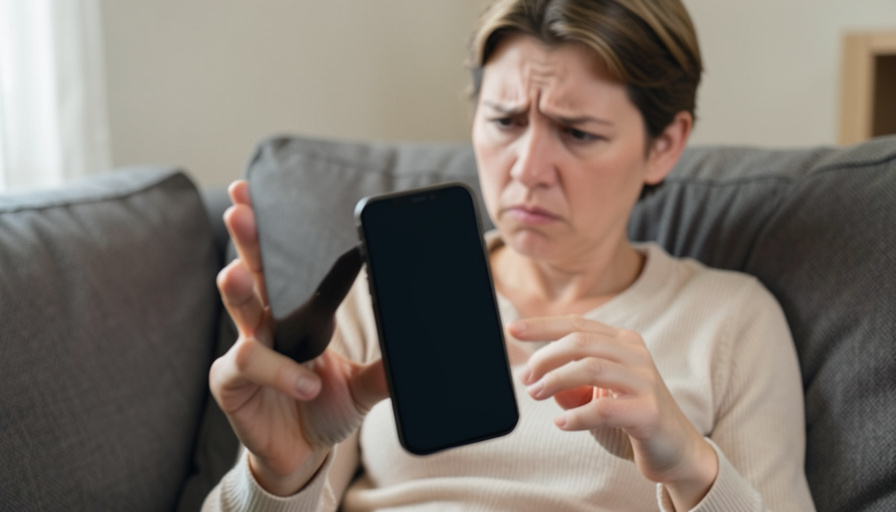
A breaking-news app promises to keep you informed, so it is an easy thing to trust and a convenient disguise for something else. Some lookalike “news alert” apps, especially ones you find outside the Google Play Store, are adware in disguise: their job is not to bring you headlines but to flood your phone with pop-up ads, hijack your browser, and sometimes drop more software onto the device. The good news is that these apps give themselves away, both in the permissions they ask for and in how your phone starts behaving once they are installed. Here are eight red flags that a news-alert app on Android is adware in disguise, along with the specific settings to open and switch off if you find one already on your phone.
Read the list as a pattern, not a single test. One item alone might be innocent, but a news app that asks for powers it has no use for, and a phone that starts throwing ads at you afterward, together tell a clear story. Understanding adware as a business, ads shown by any means available, is what makes the signs obvious.
Why fake news apps are a favorite disguise
Breaking-news apps are a natural cover because people expect them to send frequent alerts and run in the background, which is exactly the behavior adware needs. A constant stream of notifications hides ad spam, and a reason to “always be on” excuses the battery and data use. Lookalike apps with generic names and urgent branding lean on that expectation, especially away from the major publishers, where a shiny “instant alerts” app from an unknown developer can quietly monetize your attention instead of informing you. The eight signs below cut through the disguise.


1. It asks for Accessibility access
A genuine news reader has no reason to touch Android’s Accessibility service, which is built for people with disabilities and can read everything on your screen and tap on your behalf. Adware abuses it to click ads for itself, grant itself more permissions, and resist being removed. If a news-alert app asks you to turn on Accessibility, that request alone is reason enough to refuse and uninstall. On Android 13 and later, the system blocks apps you installed from outside an app store from getting Accessibility by default, showing a “Restricted setting” message, so hitting that wall is itself a sign the app is reaching somewhere it should not.
2. It wants to display over other apps
The “Display over other apps” permission lets an app draw on top of everything else on screen, and it is how adware pushes full-screen and pop-up ads over your home screen and whatever you are using. A few legitimate tools use a small floating bubble, but a breaking-news reader does not need to paint over your entire display. If the app requests this permission and you then start seeing ads layered over unrelated apps, connect the two and treat the app as the source.
3. Ads appear when the app is not even open
The clearest tell is ads showing up where the app is nowhere in sight: on your home screen, on the lock screen, in your notification shade, or as a browser tab that launches on its own. Well-behaved apps show ads only inside themselves while you use them. When pop-ups, full-screen takeovers, and surprise redirects start following you around the phone after you install a news app, that app is the likely culprit, and this out-of-context advertising is the working definition of adware.

4. It pushes you to install more apps
A lot of adware is a “dropper,” a first app whose real purpose is to install others. If your news app asks for permission to install unknown apps, or keeps nudging you to download and install another file to “enable alerts” or “finish setup,” treat that as a serious warning. A real news app updates itself through the store you got it from, and it never asks you to sideload extra software to keep working. That prompt to install more is often the moment the trouble spreads.
5. The app icon vanishes after you open it
Some adware hides its own icon from the app drawer soon after you first open it, so you cannot find it to remove while it keeps serving ads in the background. If an app you clearly installed disappears from your home screen and app list but the pop-ups keep coming, do not assume it is gone. Open your full list under Settings, then Apps, where hidden apps still appear even when their launcher icon does not, and you can spot the recent install that does not belong.
6. It demands notification powers beyond posting alerts
Sending you news alerts is normal, but two related requests are not. An app that asks for Notification access, the setting that lets it read and act on all of your notifications rather than only post its own, is asking for a reach a news reader has no need for. And an app that buries you in ad notifications dressed up as “breaking news” is selling your attention, not reporting. On Android 13 and later, the system also restricts sideloaded apps from that notification-reading access with the same “Restricted setting” block, for the same reason.
7. You got it off-store, from an unknown maker
Where the app came from matters as much as what it does. Adware spreads most through links in texts, ads, and third-party download sites rather than official app stores, and even on a store, lookalike “breaking news” apps from unknown developers with few downloads and generic names carry more risk than a known publisher’s official app. Before installing anything, check the developer’s name, the download count, and the reviews, watching for a wave of identical five-star ratings, and see whether the permissions it wants go far beyond what reading news could require.

8. Your battery, data, and browser go haywire
Adware runs constantly in the background to fetch and display ads, and that effort shows up in the phone itself. Watch for unusual battery drain, a jump in mobile data use, a device that runs warm when idle, and a web browser whose homepage or default search engine changed without your doing. If any of these began right after you added a news app, open your battery and data usage by app in Settings, where a simple news reader consuming heavy resources is a strong sign that its real work is something other than news.

How to check and remove a suspect app
If the signs point to adware, work through the removal in order. First strip its powers: open Settings, go to Apps and then Special app access, and turn the suspect app off under Accessibility, Display over other apps, Install unknown apps, and Notification access. Then uninstall it from Settings, then Apps, where hidden apps still show; if it will not uninstall, remove it first under Security and Device admin apps. When pop-ups make the screen unusable, restart the phone in Safe Mode, which disables downloaded apps temporarily so you can delete the offender. Finally, open the Play Store, tap your profile, and run a Google Play Protect scan to catch known harmful apps. Exact menu names vary by phone brand and Android version.
This is general safety guidance, and menu paths differ across Android versions and manufacturers. If you bank or hold sensitive accounts on the device and suspect more than adware, change your important passwords from a device you trust, and treat a factory reset, after backing up your data, as a last resort. When in doubt, stick to well-known apps from official stores.
What To Know
- A news app that asks for Accessibility or Notification-reading access is a major red flag, since a reader has no legitimate use for either.
- Ads that appear outside the app, on your home or lock screen, in notifications, or as surprise browser tabs, point to adware.
- Requests to “display over other apps” or to install more software, and an icon that vanishes after opening, are classic adware behavior.
- Apps from links or off-store sources, by unknown makers with few downloads, carry the most risk, so check the developer and permissions first.
- To remove one, revoke its special permissions, uninstall it (using Safe Mode if needed), and run a Google Play Protect scan.
Frequently Asked Questions
Why would a news app ask for Accessibility permission?
It should not, and that is the point. Android’s Accessibility service is designed for users who need help operating their phone, and it can read the whole screen and tap for you, so a news reader has no honest use for it. Adware requests it to click its own ads, escalate its permissions, and make itself harder to delete. If a news-alert app asks you to enable Accessibility, decline and uninstall it. On Android 13 and later, the system blocks sideloaded apps from this access by default and shows a “Restricted setting” warning.
How do I tell if pop-up ads are coming from a news app?
Notice when and where the ads appear. If pop-ups, full-screen ads, or browser redirects show up while the app is closed, on your home screen, lock screen, or notifications, they are coming from an app running in the background, and a recently installed news app is a prime suspect. Check Settings for apps with “Display over other apps” enabled, look at your battery and data usage for a news app consuming more than it should, and uninstall the most recent additions to see if the ads stop.
Can adware come from the Google Play Store, or only sideloaded apps?
Most adware spreads through links, ads, and third-party sites, which is why off-store installs are riskier, and Android 13 and later add extra blocks specifically for sideloaded apps. But lookalike apps do sometimes slip onto official stores too, so the store alone is not a guarantee. Judge any “breaking news” app by its developer, download count, reviews, and the permissions it requests, and prefer the official app from a publisher you recognize over a generic alert app you have never heard of.
How do I remove an adware app that won’t uninstall?
Adware often protects itself, so remove its footing first. Go to Settings, then Security and Device admin apps, and turn off the suspect app if it is listed there, then revoke its entries under Special app access. If pop-ups block the screen, restart in Safe Mode, which disables downloaded apps temporarily, and uninstall it from Settings then Apps. Afterward run a Google Play Protect scan. If the app still resists and the phone stays compromised, backing up your data and doing a factory reset is the reliable last step.
What Android settings should I check for a suspicious app?
Open Settings, then Apps, then Special app access, and review four lists: Accessibility, Display over other apps, Install unknown apps, and Notification access. A news app that appears in any of these, especially Accessibility or Notification access, deserves scrutiny. Also check battery and data usage by app, and your default browser’s homepage and search settings for unexpected changes. Turning the app off in each special-access list removes most of its ability to show ads even before you uninstall it.
What To Do Next
If any of these signs match an app on your phone, revoke its special permissions and uninstall it today, then run a Play Protect scan and reset your browser to a trusted homepage. Going forward, install news apps only from official stores and known publishers, and read the permission requests before you tap allow. For related protection, see our guide to spotting fake breaking-news text scams and our advice on what app permissions mean before you grant them. The news section has more on getting your headlines without the traps.