You sit down to watch something, the streaming device lights up, and instead of a picture you get a black screen and a warning about an HDCP error. It reads like a serious fault, but it almost never is. HDCP is a copy-protection check that runs over your HDMI cable, and the error just means the devices in your setup could not agree that the connection is secure, so the picture is withheld. It is usually a handshake that stumbled, not broken hardware. Here is what the error means, why the result is a blank screen, and how to clear it in the order that fixes the most cases first.
The reassuring headline: an HDCP error is one of the most common and most fixable TV problems, and a plain power cycle sorts out the majority of them. Work down the list below and stop as soon as the picture returns.
What an HDCP error is
HDCP, short for High-bandwidth Digital Content Protection, is a security check built into the HDMI connection between your devices. Before it plays protected video, your streaming device and your TV, along with anything in between like a receiver or soundbar, perform a quick handshake to confirm each link in the chain is allowed to show that content. When the handshake succeeds, you never notice it. When any link cannot confirm it, the system refuses to send the picture, and you get the HDCP error. So the error is not about your internet or the app; it is about the HDMI path between your boxes failing a permission check.
Why it shows up as a black screen
The black screen is the protection working as designed. Because HDCP is meant to stop protected video from being copied, the rule is simple: if the chain cannot prove it is secure, no picture is sent at all. That is why you get darkness rather than a glitchy image, and why you sometimes hear audio while the screen stays black, since the sound is not always held back the same way. It also explains why the same device plays fine on one TV and fails on another, or worked yesterday and not today. A single weak link, a cable, a port, or a device that dropped the handshake, blanks the whole screen.

First, power-cycle the whole chain
Start here, because a stuck handshake is the most common cause and a full power cycle resets it. Turn off and unplug everything in the path from the wall: the streaming device, the TV, and any receiver or soundbar between them. Leave them off for about a minute so they fully discharge, then plug them back in and power them on in order, the TV first, then the receiver, then the streaming device last. Bringing them up in that sequence lets the handshake start fresh from the display outward, which clears most HDCP errors on the first try.
Check the cable and the port
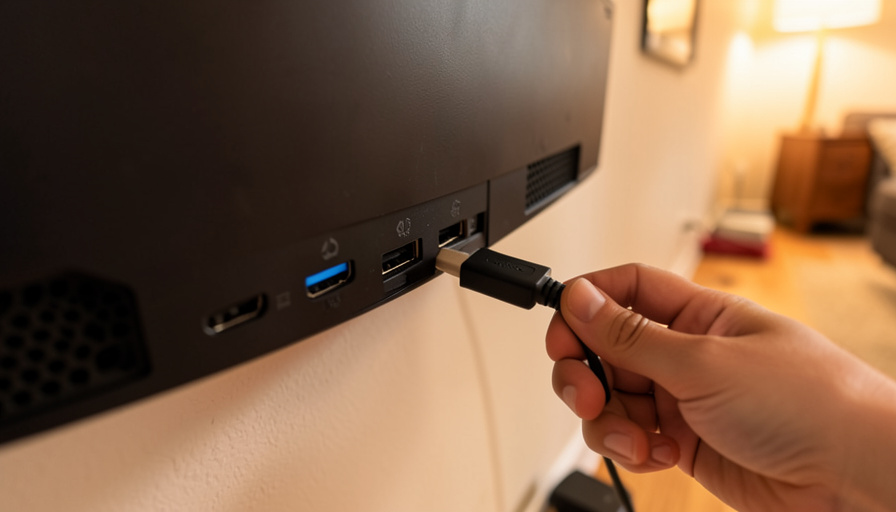
If a reset does not do it, suspect the physical link. Reseat the HDMI cable firmly at both ends, then try a different cable, ideally a certified high-speed one, since an old or failing cable can break the handshake, especially for 4K and HDR video that needs a newer HDCP version. Next, move the cable to a different HDMI port on the TV. Ports are not always equal: some support the HDCP version and bandwidth that 4K content requires while older ones do not, and TVs often label the capable port. A fresh cable in the right port fixes a surprising number of these errors.

Take the middle devices out
Every extra box in the chain is another link that has to pass the handshake, so remove them to find the culprit. Unplug the streaming device from the receiver or soundbar and connect it straight into the TV. If the picture comes back with that direct connection, the middle device or its HDMI input was the problem, and you can work on that piece, updating it, changing its port, or adjusting its settings, rather than the TV or streamer. Splitters, switches, and older receivers are frequent offenders, because a component that does not fully support current HDCP can block the whole chain.
Update firmware and HDMI settings
When the basics check out, look at software and settings. Make sure your TV, your streaming device, and any receiver have their latest firmware, since 2026 TVs juggle newer HDMI features and an out-of-date box can mishandle the handshake. Then check your TV’s HDMI settings: many sets have an option, often named something like HDMI Enhanced, UHD Color, or Input Signal Plus, that must be turned on for the port to carry 4K HDCP correctly. Enabling it for the port your streamer uses, and confirming any receiver is set to pass the signal through, resolves the handshake conflicts that firmware and feature mismatches cause.
What To Know
- An HDCP error means the copy-protection handshake over your HDMI connection failed, not that your device or internet is broken.
- The screen goes black because protected video is withheld entirely when the chain cannot prove it is secure; you may still hear audio.
- A full power cycle, TV first then receiver then streamer, clears most HDCP errors, so try that before anything else.
- Reseat or replace the HDMI cable and try a different port, since old cables and non-4K ports commonly break the handshake.
- Bypass receivers, soundbars, and splitters by connecting straight to the TV, and update firmware plus any 4K HDMI setting.
Frequently Asked Questions
What does an HDCP error mean?
It means the copy-protection check that runs over your HDMI cable did not pass. Before playing protected content, your streaming device and TV, plus anything between them, confirm the connection is secure through a handshake called HDCP. If any link cannot confirm it, the system refuses to send the picture and shows the error. It is a permission problem on the HDMI path between your devices, not a fault with the app, the internet, or usually the hardware itself.
Why is my screen black but I can still hear sound?
That pattern points squarely at HDCP. Because the protection blocks the protected video when the handshake fails, the picture is withheld while the audio often still comes through, leaving you with sound and a black screen. It is a strong sign the issue is the HDCP handshake rather than a dead device. Power-cycle the whole chain, reseat or swap the HDMI cable, and try a different port, which resolves most cases of audio-with-black-screen.
How do I fix an HDCP error fast?
Power-cycle everything first. Unplug the streaming device, the TV, and any receiver or soundbar for about a minute, then power them on in order, the TV first, the receiver next, and the streaming device last. That resets a stuck handshake and clears the majority of HDCP errors. If it persists, reseat or replace the HDMI cable, move it to a different HDMI port on the TV, and connect the streamer directly to the TV to rule out a device in the middle.
Can a cheap or old HDMI cable cause an HDCP error?
Yes. A worn, damaged, or low-grade HDMI cable can fail to carry the handshake reliably, and older cables may not support the bandwidth and HDCP version that 4K and HDR content require. If you see the error mainly on high-resolution video, the cable is a prime suspect. Switch to a certified high-speed HDMI cable and plug it into the port your TV labels for 4K, and confirm both ends are seated firmly, which often clears the problem.
Does a receiver or soundbar cause HDCP errors?
It can, because every device the signal passes through has to support the same HDCP handshake. If a receiver, soundbar, splitter, or switch does not fully support the current version, it can block the whole chain and blank the screen. Test by connecting the streaming device straight to the TV: if that works, the middle device is the cause. From there, update its firmware, try a different HDMI input on it, or adjust its pass-through settings.
What To Do Next
Run the fixes in order: power-cycle the whole chain, reseat or replace the cable and try another port, connect the streamer directly to the TV, then update firmware and turn on the 4K HDMI setting. That sequence clears the vast majority of HDCP errors. If your problem is a stream that connects but will not play rather than an HDMI error, see our guide to casting that connects but won’t play video, and the entertainment section has more fixes for your screens and streaming setup.