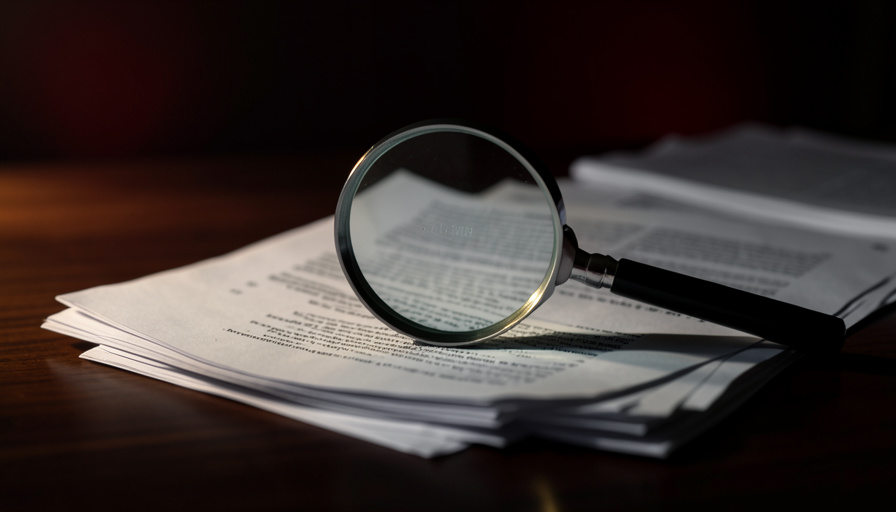
A rejected e-filing almost always comes down to one thing the court’s system can’t do with your file: read the words inside it. Here’s how to confirm that’s the problem and fix it fast.
You uploaded the PDF, hit submit, and felt done. Hours later the clerk bounced it back with a line like “document is not text-searchable,” and now a deadline is breathing down your neck. It feels like a big technical failure. It usually isn’t.
Here’s the frustrating part: the rejection notice rarely explains what to actually do. But the fix is short once you understand what “text-searchable” means to a filing system, and most people can get a clean file back in under ten minutes.
The Short Version
A court rejects a PDF as “not text-searchable” when the file is just a picture of a page, with no digital text layer underneath, which happens whenever you scan a paper document. The fastest fix is to skip the scan entirely and export a fresh PDF straight from the original Word or Google Docs file, because that produces searchable text automatically. If you only have a scan, run it through OCR (optical character recognition) software to add a text layer, confirm the file is searchable, then re-file. Do the search test on more than one page before you resubmit, since a PDF can be searchable in some spots and image-only in others.
What “text-searchable” means to a court
Every PDF is one of two things under the hood. Either it carries a real text layer the computer can read, select, and search, or it’s an image of text, which to software is no different from a photo of a cat. Documents you export directly from a word processor come out searchable. Documents you scan come out as images unless something adds the text back.
Courts care because their systems index, search, and increasingly have to make filings accessible. The federal CM/ECF system expects text-searchable PDFs, and a native export satisfies that on its own while a scan needs OCR first. State portals say it more bluntly. Texas judicial technology standards state that a filing “will be rejected if the image is not a text searchable PDF document,” and that scanned pages should be captured at 300 DPI and run through OCR, per the Texas JCIT standards. Different portal, same rule.
First, make sure searchability is really the problem
Rejection notices are famously vague, and clerks and e-filing vendors sometimes point at each other instead of naming the cause. So before you re-scan anything, confirm it with a ten-second test of your own.
- Open the PDF and press Ctrl+F (Cmd+F on a Mac).
- Search for a specific word you can plainly see on the page, like a name or a heading. Skip common words.
- If nothing is found, there’s no text layer. That’s your problem.
A second check catches the sneaky cases: press Ctrl+A to select all, then Ctrl+C, and paste into any text box. Real text pastes in. An image pastes nothing. Now the part most guides skip. A single PDF can mix a native cover page with a scanned exhibit stapled behind it, so it passes a quick glance and still gets bounced. Test the first page, a middle page, and the last page before you trust it.
One caveat worth knowing: a few jurisdictions only require searchability when it’s reasonably achievable. California’s Rule of Court 2.256(b) asks for text-searchable filings “when technologically feasible,” and defines that as needing no more than standard, commercially available OCR software, per the California Rules of Court. In plain terms, if ordinary OCR can read it, the court expects you to run it.
The fastest fix: rebuild the PDF from the original
If the document started life in Word, Google Docs, Pages, or WordPerfect, do not scan it and do not OCR it. Open the source file and export a new PDF with “Save as PDF” or “Print to PDF.” That single step gives you a fully searchable file, no extra tools, no guesswork.
This is the move I’d reach for first every time, because it sidesteps OCR errors completely. Scanning takes a perfectly good digital document and throws away the text, then OCR tries to guess it back. Why lose information you already have? Reserve the scanner for things that only exist on paper: a signed exhibit, an old letter, a court form someone handed you.
No original? Add a text layer with OCR
When paper is all you’ve got, OCR reads the image and writes an invisible text layer behind it, so the page looks the same but is now searchable. The workflow is the same across tools:
- Open the scanned PDF in your OCR tool.
- Run the OCR or “recognize text” command and let it process every page.
- Save the file, then run the Ctrl+F test above to confirm it worked.
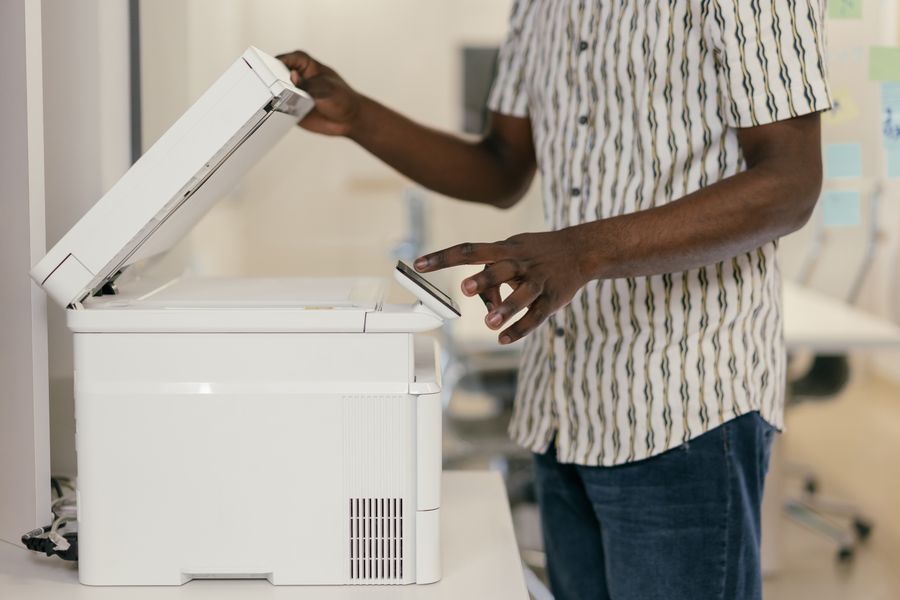
The scanner in that photo is where searchability quietly dies. It captures a picture, not words, which is exactly why the OCR step exists. Here are the tools worth knowing, and when each one earns its place:
| Tool | Cost | Runs | Best for |
|---|---|---|---|
| Adobe Acrobat (Scan & OCR) | Paid (Acrobat Pro) | Desktop | Filers who already have Acrobat and do this often |
| OCRmyPDF | Free, open source | Local machine | Confidential filings you want to keep off any server |
| Microsoft Word | Included with Office | Desktop | A quick one-off; open the PDF and it converts |
| Scanner “searchable PDF” setting | Free | The scanner itself | Fixing the problem at the source, before it’s a filing |
Two tools cover most people. OCRmyPDF is free, open source, and runs entirely on your own computer, which matters for legal documents. Adobe’s Scan & OCR is the familiar option if you already pay for Acrobat. Honestly, the desktop route is the safer default here. Free web-based OCR sites upload your file to a third party, and a confidential court filing is not something you want sitting on a stranger’s server. Keep sensitive documents on a tool that runs locally.
One accuracy note: OCR reads lowercase letters well but stumbles on digits, capitals, and punctuation. After you OCR, eyeball any account numbers, dollar amounts, and dates by hand.
Mind the file size and flatten the form
Adding a text layer can inflate a PDF, and that can trip a different rule on the way back in. Courts cap file size, often somewhere between 25 MB and 100 MB per document. New York’s NYSCEF system, for example, requires PDF/A format, wants word-processor files saved as searchable text, and sets a 100 MB limit per document. If your OCR’d file is too big, use your editor’s “reduce file size” option or re-export the original at a lower image resolution.
Flattening trips people up too. A court form saved with live, fillable fields can bounce even when the text is searchable. Print it to PDF or use your editor’s flatten command so the fields become part of the page. And if a court asks specifically for PDF/A, most editors offer it under “Save as” or an export preset, so switch that on before you submit.
Before you re-file: a 60-second check
Run this quick pass and you’ll rarely get bounced twice for the same reason:
- Ctrl+F finds a word on the first, a middle, and the last page.
- Select-all and copy actually pastes real text, not blank space.
- The file is under the court’s size limit.
- No password, encryption, or live form fields remain on the document.
- If required, the file is saved as PDF/A.
What to do if the rejection landed after your deadline
This is the situation that actually scares people, and it’s worth its own answer. A rejection that arrives past your filing deadline does not automatically mean you missed it. Federal courts usually give a short window to cure a technical defect and re-file, and they tend to say clearly what needs changing.
State courts vary more. Many will let you resubmit the corrected document with a short cover letter asking that it be treated as filed on the original date, and that letter should state the original filing date, the date of rejection, and the reason given. Rules and deadlines differ by court, so if rights or a statute of limitations are on the line, call the clerk’s office and talk to a lawyer before assuming anything. This is the moment to get it confirmed, not guessed.
This article is general information, not legal advice. Rules and deadlines vary by court and by location, so consult a qualified lawyer for advice on your specific situation and filing.
Frequently asked questions
What does “text-searchable PDF” mean for court filing?
It means the PDF contains a real digital text layer the court’s system can read and search, not just a flat image of a page. Files exported straight from a word processor are searchable by default; scanned files are images until OCR adds the text.
How do I check if my PDF is text-searchable?
Open it, press Ctrl+F (Cmd+F on Mac), and search for a word you can see on the page. If it finds the word, there’s a text layer. Test the first, a middle, and the last page, because part of a file can be searchable while another part isn’t.
Do I have to redo the whole file if only one exhibit is a scan?
Usually you just need to OCR the pages that lack text, then confirm the entire file passes the search test. A mixed file, part native and part scanned, is the most common reason a document looks fine but still gets rejected.
Is a free online OCR tool safe for court documents?
Be careful. Web-based OCR sites upload your file to a third-party server, which is a poor fit for confidential filings. For sensitive documents, use a tool that runs on your own machine, such as OCRmyPDF or desktop Acrobat, or your scanner’s built-in searchable-PDF setting.
Does creating the PDF from Word avoid this problem entirely?
Yes, for anything that started as a digital document. Exporting with “Save as PDF” or “Print to PDF” from Word or Google Docs produces searchable text automatically, so you never need to scan or OCR it. Save scanning for documents that only exist on paper.
The Bottom Line
A “not text-searchable” rejection sounds technical, but it’s really the court telling you it received a picture when it needed words. Confirm the problem with a quick search test, rebuild from the original file when you can, and OCR the scan when you can’t. Then check more than one page before you resubmit. For more legal explainers written for regular people, browse Visboo’s Law section, and for tool walkthroughs like this one, our Technology coverage is a good next stop.