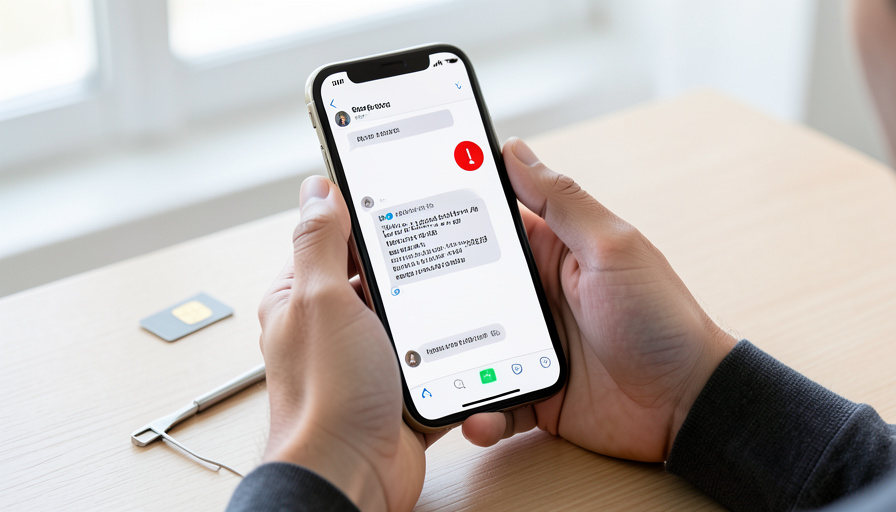
You send a message and it goes out as RCS from one SIM, then you switch to your other line and the same message stalls, drops to plain SMS, or sits there with an error. On a dual-SIM Android phone this is maddeningly common, and the reason is simple once you know it: RCS registers to each phone number separately, not to the phone. So one of your numbers can be fully set up while the other never finished, and Google Messages quietly falls back to SMS for that line. The good news is that almost every cause is a setting you can check yourself. Here are eleven, in the order worth trying them.
Menus and labels vary a little between phone brands and Android versions, so if a setting below sits somewhere slightly different on your device, look for the same wording nearby. Work down the list until both SIMs send.
The Short Version
RCS on a dual-SIM phone depends on each number completing its own registration, so most failures come down to one line not being set up. Confirm your Google Messages app is current and supports dual-SIM RCS, then for the SIM that won’t send, check that it has mobile data, that Google Messages is your default texting app, that Carrier Services is updated, and that your carrier supports RCS on that line. If RCS is stuck connecting, toggling chat features off and on to re-register is the fix that most often works.
Common Symptoms and Likely Causes
| What you see | Likely cause |
|---|---|
| Works on one SIM, not the other | Only one number registered |
| Stuck on “Connecting” | Registration didn’t finish |
| Drops to SMS | No data on that SIM |
| No RCS option at all | App or carrier support missing |
| Worked, then stopped | Needs a re-register |
1. Update Google Messages and confirm dual-SIM support

Start at the source. Dual-SIM RCS support arrived in Google Messages gradually through 2024 and into 2025, so an older version of the app may only handle RCS on your default SIM. Open the Play Store, update Google Messages to the latest version, and restart the phone, following Google’s steps for turning on RCS chats. On some devices the feature is still rolling out, so if you’re fully updated and dual-SIM RCS still won’t appear, that can be why. Getting on the current app is the foundation for everything else here.
2. Register each SIM’s number separately
This is the core of the whole problem. RCS, or Rich Communication Services, identifies you by phone number, not by SIM slot, so each of your two numbers has to complete its own registration. It’s entirely possible for SIM one to be connected while SIM two never finished, which is exactly what “works on one line, not the other” looks like. In Google Messages settings, open the RCS chats or chat features section, select the SIM that’s failing, and confirm its status. If it isn’t connected, the checks below are about getting that specific line registered.
3. Give the failing SIM mobile data

RCS is an internet-based service, not old-school SMS, which means the line you’re sending from needs a working data connection. On a dual-SIM phone, only one SIM is usually set as the mobile-data SIM, and if your RCS line isn’t the one with data, messages can drop to SMS. Make sure the SIM you want to send RCS from has mobile data available, or that you’re on Wi-Fi, during registration and sending. This single mismatch explains a lot of dual-SIM RCS failures.
4. Set Google Messages as your default texting app
RCS through this system only works inside Google Messages, so it has to be your default SMS app. If your phone shipped with a different messaging app set as default, or you switched at some point, RCS won’t function. Go to your phone’s app settings, find the default apps section, and set Google Messages as the SMS app. It’s an easy thing to overlook, especially on phones from manufacturers that preload their own messaging app, and RCS can’t register through anything else.
5. Update the Carrier Services app
Behind the scenes, an app called Carrier Services handles the RCS registration handshake, and an outdated version can quietly break it. It’s a Google app that often updates separately from Messages, so it’s easy to fall behind. Open the Play Store, search for Carrier Services, and update it if an update is available. After updating, restart your phone so the registration can run fresh. When RCS refuses to connect for no obvious reason, an out-of-date Carrier Services is a frequent and easily missed culprit.
6. Confirm your carrier supports RCS on that line
Not every line supports RCS, and this matters twice on a dual-SIM phone. Major carriers support RCS through Google Messages, but some smaller carriers and resellers don’t, or support it inconsistently, so one of your two lines might be on a network that doesn’t offer it. If your failing SIM is on a budget or prepaid provider, check whether that carrier supports RCS at all. If it doesn’t, no amount of setting-tweaking will turn it on for that line, and the messages will correctly fall back to SMS.
7. Fix RCS stuck on “Connecting” or “Setting up”

A status that sits on “Connecting” or “Setting up” for a long time means the number’s verification never finished. Sometimes it just needs time and a solid connection, so give it a few minutes on strong Wi-Fi or data. If it’s still stuck after that, the registration likely stalled and needs a reset, which the last check covers. In the meantime, confirm the number shown for that SIM is correct, since RCS verifies against your actual phone number and a mismatch there will keep it spinning.
8. Set date and time to automatic
An odd but real cause is a wrong system clock. RCS registration involves time-sensitive verification, and if your phone’s date or time is off, the handshake can fail silently. Open your phone’s date and time settings and switch on the automatic, network-provided options for both. It takes seconds, costs nothing, and rules out a cause that would otherwise be almost impossible to guess. If you recently traveled across time zones or set the clock manually, this is well worth checking.
9. Make sure the SIM is enabled and airplane mode is off
It sounds basic, but on a dual-SIM phone it’s easy to leave a line switched off. In your SIM or network settings, confirm the SIM you’re trying to send from is toggled on and active, not disabled to save battery or data. Also make sure airplane mode isn’t on, since that cuts the connection RCS depends on. Toggling airplane mode on and off can even nudge a stalled registration back to life. Confirm the line is genuinely active before you dig into deeper fixes.
10. Clear the cache for Messages and Carrier Services
When the apps involved get into a bad state, clearing their cache often shakes RCS loose. In your phone’s app settings, find Google Messages and clear its cache, then do the same for Carrier Services. Clearing the cache removes temporary files without deleting your messages, so it’s low-risk. Restart the phone afterward and let RCS attempt registration again. This is a standard troubleshooting step that resolves a surprising share of “it just won’t connect” cases on both single and dual-SIM devices.
11. Turn RCS off, restart, and back on to re-register

When everything else checks out, force a clean re-registration. In Google Messages settings, open RCS chat features for the affected SIM and turn them off. Restart your phone, wait a moment, then go back in and turn chat features on again. This makes the number register from scratch, and it’s the step that finally works for many people whose RCS was stuck. If you have both lines misbehaving, do it for each SIM. Give it a few minutes on a strong connection to finish, and your status should move to connected.
How We Chose These
We ordered these checks the way an experienced troubleshooter would work through them, starting with the app and the core dual-SIM behavior before moving to network, carrier, and reset steps. The list reflects how RCS registration operates in Google Messages, where each number verifies on its own, which is why dual-SIM phones see failures single-SIM users never do. We focused on settings you can check without any special tools, and left out steps that require developer options or a factory reset, since those are rarely necessary to get a stalled line sending.
The Bottom Line
When RCS sends from one SIM but not the other, remember the rule that explains almost everything: each number registers on its own. Update Google Messages, make sure the failing line has data and that Google Messages is your default app, update Carrier Services, and confirm the carrier supports RCS on that line. If it’s stuck, clear the caches and re-register by toggling chat features off and back on. Work down the list and both lines should light up. If your phone’s notifications are misbehaving in other ways too, our guide to fixing app notifications that stop uses the same methodical approach, and the technology section has more.
Frequently Asked Questions
Why is RCS not sending on my dual-SIM Android phone?
Usually because RCS registers to each phone number separately, and only one of your two lines finished setting up. RCS also needs the sending SIM to have mobile data, Google Messages set as your default app, an updated Carrier Services app, and a carrier that supports RCS on that line. Check the RCS status for the specific SIM that’s failing in Google Messages settings, then work through data, default app, and carrier support to get it registered.
Does RCS work on both SIMs at once?
It can, on supported phones. Google Messages rolled out dual-SIM RCS widely during 2024 and 2025, so with a current app version many devices can register RCS on both numbers. Each number still has to complete its own registration, and both lines need to meet the requirements, like carrier support and a data connection. If dual-SIM RCS still won’t appear after updating, your device or carrier may not fully support it yet.
Why does RCS stay stuck on “Connecting”?
A status frozen on “Connecting” or “Setting up” means the number’s verification didn’t complete. Give it a few minutes on a strong Wi-Fi or data connection first. If it’s still stuck, the registration likely stalled, and the reliable fix is to turn RCS chat features off for that SIM, restart the phone, and turn them back on to re-register. Also confirm the phone number shown for that SIM is correct, since RCS verifies against it.
Do I need mobile data for RCS to send?
Yes. RCS is an internet-based messaging service, so it needs either mobile data or Wi-Fi to send, unlike plain SMS. On a dual-SIM phone, only one SIM is typically set as the data SIM, so if the line you’re sending RCS from has no data, messages will drop to SMS. Make sure the sending SIM has data available, or connect to Wi-Fi, when you’re registering RCS and sending messages.
Will clearing the cache delete my text messages?
No. Clearing the cache for Google Messages or Carrier Services only removes temporary files those apps use, not your conversations. It’s a safe, common troubleshooting step. What you should avoid is clearing the app’s storage or data, which is a different option that can remove settings and messages. Stick to “clear cache,” restart the phone, and let RCS try to register again with a clean slate.