Here’s a small indignity of modern software: you can open, read, and even annotate a PDF for free, but the moment you want to pull real text out of a scanned page, a paywall appears. Optical character recognition, the feature that turns a picture of words into words you can search, copy, and edit, is one of the most common things the big editors lock behind a subscription. Adobe Acrobat keeps full OCR in its Pro tier, and plenty of slick web tools do the same. You don’t have to pay for it. These 11 alternatives give you OCR for free, whether you want a full editor, a no-nonsense utility, or a tool that’s already sitting on your device.
They’re not all the same shape. Some are complete PDF editors, some are single-purpose OCR engines, and a few are apps you already own without realizing they can do this. The list runs from the most editor-like to the most lightweight, so you can stop at whichever fits how you work.
The Short List
The strongest free options with unlocked OCR are PDF24 and PDFgear for a full editor, PDF-XChange Editor on Windows, and Stirling PDF if you like open source you can self-host. For pure text extraction, NAPS2, OCRmyPDF, and gImageReader lean on the free Tesseract engine. And if you’d rather install nothing, Google Docs, Microsoft OneNote, Apple’s Live Text, and Microsoft Lens all do OCR at no cost on tools you already have.

Free PDF OCR Tools at a Glance
| Tool | Platform | Best for |
|---|---|---|
| PDF24 Creator | Windows, web | A full free toolkit with OCR built in |
| PDFgear | Windows, Mac, mobile | A polished free editor with OCR |
| PDF-XChange Editor | Windows | Fast editing with free OCR |
| Stirling PDF | Self-hosted, web | Open source you control |
| NAPS2 | Windows, Mac, Linux | Scanning straight to searchable PDF |
| OCRmyPDF | Windows, Mac, Linux | Batch OCR from the command line |
| gImageReader | Windows, Linux | A simple Tesseract front end |
| Google Docs | Any browser | OCR with nothing to install |
| Microsoft OneNote | Windows, Mac, web | Grabbing text from an image |
| Apple Live Text | Mac, iPhone, iPad | Selecting text inside a scan |
| Microsoft Lens | iOS, Android | Phone scans into editable files |
1. PDF24 Creator
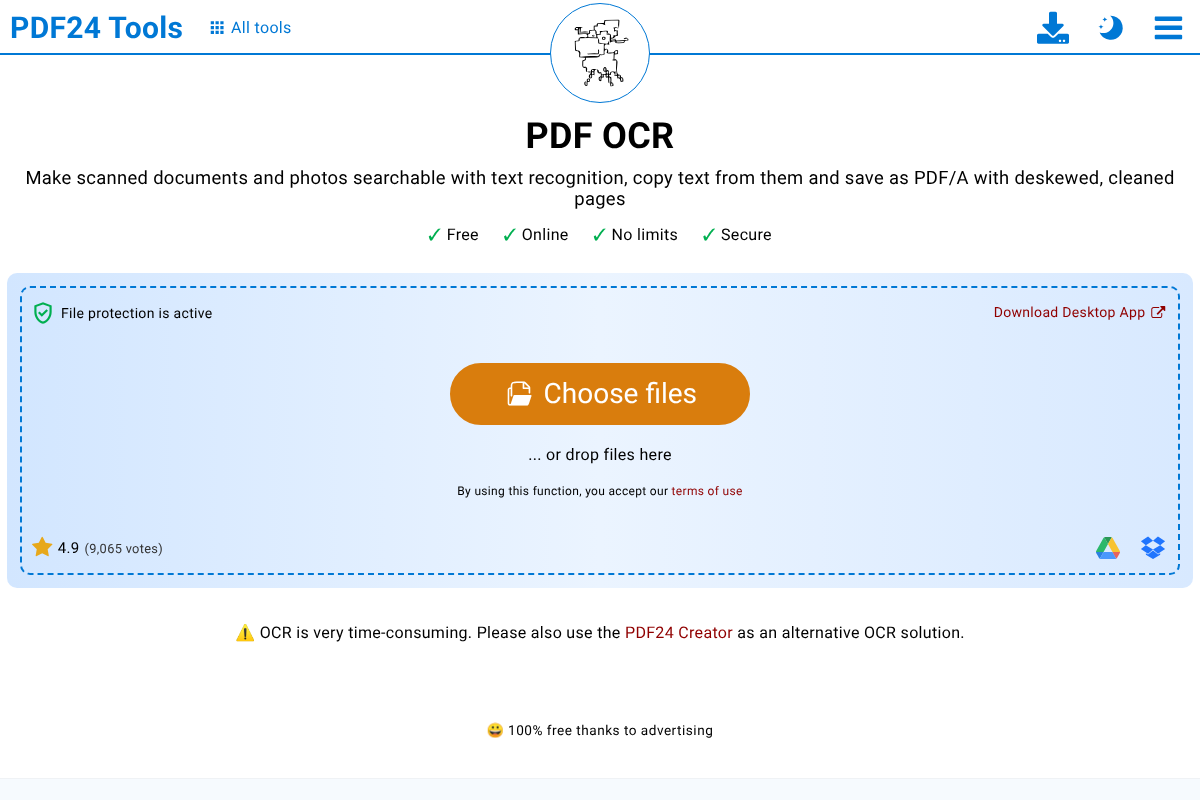
PDF24 is the closest thing to a free lunch on this list. The Windows desktop app is a full PDF toolkit, and OCR sits alongside merging, splitting, and compression, with no trial timer and no watermark. There’s an online version too, which recognizes text and saves a searchable PDF without asking you to register. The company funds it through its print-driver business, which is why it can hand out features that others charge for. The desktop app is Windows-only, so Mac and Linux users lean on the web tool, but for a genuinely free, no-strings editor with OCR, it’s the first one to try.
2. PDFgear
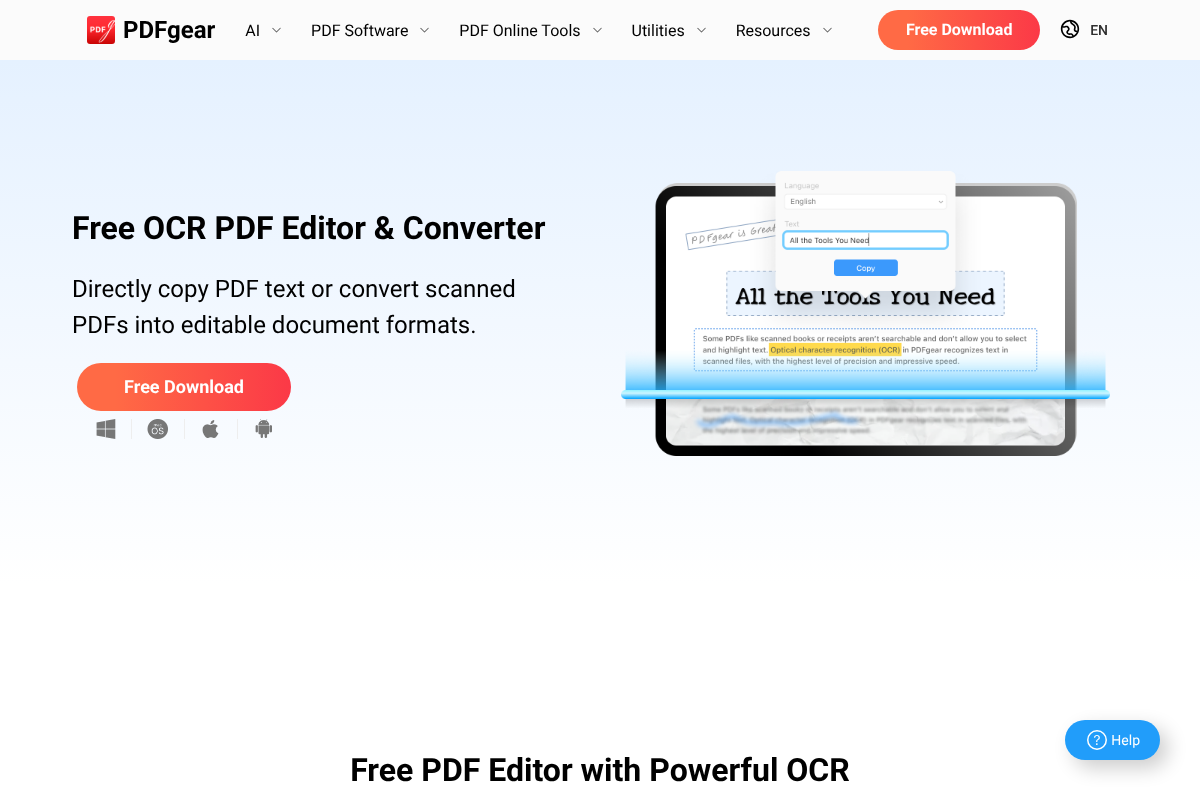
PDFgear is the polished option, the one that looks and feels like paid software but costs nothing. It runs on Windows, Mac, iOS, and Android, and its OCR turns scanned pages into editable Word, TXT, or RTF, or lets you copy text straight from a scan. There’s no signup, no trial, and no watermark, and it handles multiple languages. The usual caution with free software applies, so grab it from the official site rather than a mirror. If PDF24’s utilitarian look puts you off, PDFgear gives you the same free OCR in a friendlier package.
3. PDF-XChange Editor
PDF-XChange Editor has been a favorite among Windows power users for years, largely because so much of it is free. The base editor includes OCR at no cost, letting you make scanned documents searchable without paying. The catch is honest and worth knowing: the paid Plus version adds an enhanced OCR engine that’s faster and more accurate, and a few advanced tools stamp a small watermark until you buy a license. For everyday text recognition on a Windows machine, though, the free OCR does the job, and the editor itself is quick and deep.
4. Stirling PDF
If you like the idea of a PDF toolbox you fully control, Stirling PDF is built for you. It’s open source and designed to be self-hosted, often through a single container you run at home or on a small server, which means your documents never leave your own machine. Its OCR is powered by the open-source Tesseract engine by way of OCRmyPDF, and it sits among dozens of other tools for splitting, merging, and converting. Setup asks a little more technical comfort than clicking an installer, but the payoff is free OCR with real privacy and no upload to anyone else’s cloud.
5. NAPS2
NAPS2, short for Not Another PDF Scanner, is the tool to reach for when the document starts as paper. It drives your scanner, then runs the pages through Tesseract to produce a searchable PDF in one flow, so you skip the awkward step of scanning first and OCR-ing later. It’s free, open source, and runs on Windows, Mac, and Linux, with language packs you add as needed. It won’t redesign a page the way a heavyweight editor might, but for the common task of getting a stack of paper into clean, searchable digital files, it’s fast and reliable.
6. OCRmyPDF
OCRmyPDF is the quiet workhorse behind several other tools here, and you can use it directly if you’re comfortable with a command line. It takes a scanned PDF and adds an invisible, searchable text layer underneath the original image, so the file looks identical but becomes selectable and searchable. Because it’s scriptable, it shines at batch jobs, turning a whole folder of scans into searchable documents while you do something else. It’s free, open source, and cross-platform. Typed English documents come out remarkably accurate. The learning curve is real, but for volume work, nothing else on this list is as efficient.
7. gImageReader
gImageReader gives the Tesseract engine a friendly window, which is a relief if command lines make you nervous. It’s a free, open-source front end for Windows and Linux that pulls text out of images and PDFs, with support for importing files, pasting from the clipboard, or grabbing pages straight from a scanner. It rides on the current Tesseract release, so accuracy holds up well even on skewed or poorly lit scans, and there are no page limits or fees. Think of it as the graphical middle ground between raw OCRmyPDF and a full editor, aimed squarely at text extraction.
8. Google Docs (through Drive)
You already have this one, and most people never notice it. Upload an image or PDF to Google Drive, then open it with Google Docs, and Google runs OCR during the conversion, dropping the recognized text right into a new document. It costs nothing beyond a standard Google account and works in any browser, on any operating system. Formatting on complex layouts can get messy, and long files are hit or miss, but for pulling the words out of a scan or a photo of a page, it’s about as frictionless as free OCR gets.
9. Microsoft OneNote
OneNote hides a genuinely handy OCR trick behind a right-click. Paste or insert an image into a note, choose Copy Text from Picture, and OneNote hands you the words ready to paste anywhere. It’s free, syncs across Windows, Mac, and the web, and it’s ideal for the quick job of lifting a paragraph out of a screenshot, a receipt, or a scanned page. It isn’t a PDF editor and won’t rebuild a document’s layout, but as a zero-cost way to rescue text from an image on a machine you already use, it’s underrated.
10. Apple Preview and Live Text
On a Mac, iPhone, or iPad, Apple quietly built OCR into the system itself. Live Text lets you select, copy, and search words inside a photo or a scanned document as if they were regular text, and on the Mac you can open many PDFs in Preview and interact with their text directly. It’s free, it’s already there, and it needs no setup at all. The limitation is that it’s tied to Apple’s ecosystem, so it’s no help on Windows, but if you’re on Apple hardware, you have capable OCR without installing a single thing.
11. Microsoft Lens

When the document is in your hand and the nearest computer is across the room, your phone is the scanner. Microsoft Lens, free on iOS and Android, snaps a photo of a page, straightens and cleans it up, then runs OCR so you can export it as a searchable PDF or an editable Word file. It’s fast, it’s free, and the results sync neatly into your other Microsoft apps. For students photographing textbook pages or anyone digitizing paper on the move, it turns the camera you already carry into a legitimate OCR scanner.
How We Chose These
The one rule was simple: OCR had to be usable without a paid subscription. We left out tools that dangle text recognition and then gate it behind a monthly plan, which is why some popular names, including a few generous free editors whose OCR is paid-only, didn’t make the cut. We favored options that are genuinely free rather than trials, and we spread the list across full editors, open-source utilities, and built-in features so there’s a fit whether you’re on Windows, Mac, Linux, or a phone. Where a free version has an honest limit, like a sharper paid OCR engine, we said so.
The Bottom Line
OCR is not a premium feature, however often it’s sold as one. If you want a full editor, start with PDF24 or PDFgear, or PDF-XChange Editor on Windows. If privacy matters, self-host Stirling PDF. For turning paper into searchable files, NAPS2 and OCRmyPDF are hard to beat, and gImageReader gives the same engine a simpler face. And before you install anything, remember that Google Docs, OneNote, Apple’s Live Text, and Microsoft Lens already do this for free. Pick the one that matches your device and your patience, and keep the subscription money in your pocket. If your goal is a PDF that passes strict systems, our guide to why e-filing portals reject PDFs that aren’t searchable is worth a read, and the technology section has more.
Frequently Asked Questions
What are the best PDF editor alternatives with OCR that isn’t behind a subscription?
For a full editor, PDF24 and PDFgear both include OCR for free, and PDF-XChange Editor does on Windows. If you prefer open source, Stirling PDF, NAPS2, OCRmyPDF, and gImageReader all use the free Tesseract engine. And you can skip installing anything by using Google Docs, Microsoft OneNote, Apple’s Live Text, or Microsoft Lens, all of which perform OCR at no cost on devices you likely already own.
Why do so many PDF editors charge for OCR?
Optical character recognition is more demanding than basic viewing or annotation, and it’s a feature businesses and professionals rely on, so vendors treat it as a natural upsell. Adobe keeps full OCR in Acrobat Pro, and many web tools reserve it for premium tiers. That pricing reflects who tends to need it rather than any technical necessity, which is exactly why free and open-source tools can offer the same capability without a fee.
Is free OCR as accurate as paid OCR?
For clean, typed documents, free tools built on Tesseract are highly accurate, often in the same range as paid engines. The gap widens on messy inputs, like faint photocopies, unusual fonts, handwriting, or heavily formatted pages, where some paid engines and their cleanup features pull ahead. For everyday scans and typed pages, a free option is usually more than enough. If your documents are consistently difficult, testing a couple of tools on your own files is the honest way to judge.
Can I do OCR without installing any software?
Yes. Google Docs performs OCR when you open an uploaded image or PDF through Google Drive, entirely in the browser. Microsoft OneNote can copy text from a picture, and PDF24’s online tool recognizes text without an account. On Apple devices, Live Text reads text inside photos and scans with nothing to set up. These no-install routes are ideal for occasional jobs when you don’t want another program on your machine.
What is OCR and why does a PDF need it?
OCR, or optical character recognition, converts a picture of text, like a scanned page or a photo, into actual characters a computer can read. A scanned PDF without OCR is essentially an image, so you can’t search it, select it, or copy from it. Running OCR adds a text layer that makes the document searchable and editable. That’s why it matters for anything you need to find later, quote from, or submit to a system that checks for real text.