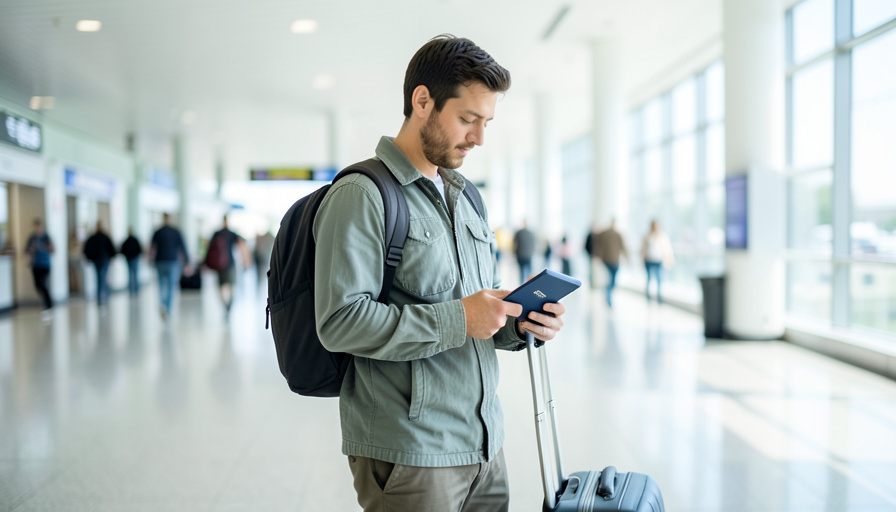
You clear the jet bridge, open the Mobile Passport Control app to breeze past the immigration line, and it throws an error or rejects your submission. Deflating, especially after a long flight. Here is the reassuring part: a rejected MPC submission does not mean you are denied entry. It means you use the paper form and the regular lane instead, the same way travelers did for years. Still, most rejections come from a short list of fixable causes, and knowing them turns a failed submission into a two-minute fix. Here are the 11 reasons Mobile Passport Control rejects a trip, and what to do about each.
Mobile Passport Control is the free official app from US Customs and Border Protection, and it works well when the details line up. When it does not, the fault is usually eligibility, a data mismatch, the photo, or timing. Work down this list and you will know which one bit you.
How Mobile Passport Control works
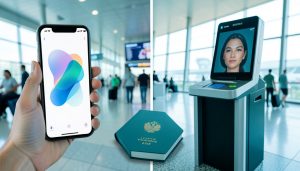
Mobile Passport Control lets eligible travelers submit their passport details and customs declaration from a phone, take a photo at the airport, and use a faster lane once CBP sends back a virtual receipt. It is free, and it is not the same as Global Entry. Because it is a real border process, the app is strict about who qualifies and whether your information matches your document exactly. Travelers do report app hiccups at some airports, which is partly why some frequent flyers still keep Global Entry as a backup, as The Points Guy has covered. The reasons below are the ones that trip people up most.

1. Your airport does not offer it
Mobile Passport Control runs at most major US airports, but not every one, and not every terminal within an airport that has it. It has also started rolling out to some land border crossings through 2026. If the app cannot find your port of entry in its list, you cannot use it there, and forcing a submission fails. Before you count on it, open the app and confirm your arrival airport is supported. If it is not listed, plan for the regular lane and skip the frustration on landing.
2. You are not an eligible traveler

MPC is open to a defined set of travelers: US citizens, US lawful permanent residents, Canadian B1 and B2 visitors, and returning Visa Waiver Program travelers with an approved ESTA. If you hold a visa outside those categories, the app will not process you, and that is by design rather than a glitch. Check that your status matches one of the eligible groups before you rely on it. If it does not, the standard inspection lane is your route, and there is nothing to fix in the app.
3. Your details do not match your passport exactly

This is the most common self-inflicted rejection. Your name, including your middle name, your date of birth, passport number, and expiration date all have to be entered exactly as they appear in your passport. A dropped middle name, a transposed digit, or a nickname will fail the match. Open your passport and copy each field character by character rather than from memory. Save your profile once it is correct, and future trips reuse it, so you only have to get it right one time.
4. Your passport will not scan
Many phones read the passport chip or the printed code at the bottom of the photo page, and that scan can fail. A worn or damaged passport, a thick phone case blocking the chip reader, glare on the page, or a slightly misaligned scan all cause errors. Take the case off if your phone struggles, hold the passport flat under even light, and line up the whole photo page in the frame. If the chip read keeps failing, entering the details by hand, carefully, is the reliable fallback.
5. Your photo is blurry or obstructed

MPC has you take a photo of yourself, and each person in your submission, once you reach the airport. If the shot is blurry, poorly lit, or your face is blocked by a hat, sunglasses, or a mask, it can fail. Find decent light, remove anything covering your face, hold still, and fill the frame with your head and shoulders. A clear, plain photo goes through. This step is quick once you know it wants a clean look at your face.
6. You took the photo before you arrived
The photo has to be captured at the port of entry you selected, after you land, not on the plane or before your trip. The app ties that on-site photo to your arrival, so an early or off-site capture does not count and the submission fails. Fill in your passport details and answers ahead of time if you like, but wait until you are physically at the arriving airport to take the photo and send it. Doing the photo last, on the ground, is the correct order.
7. Your submission window expired
A processed MPC submission is not open-ended. In the air environment your receipt is active for four hours, and at land crossings for eight, which is plenty for a normal arrival but not for a long delay. If you submit too early and then sit through a lengthy wait, or you get pulled aside, the window can lapse and you have to resubmit. Send your submission close to when you will reach the officer, not the moment the wheels touch down.
8. You had no connection when you submitted
The app needs a working internet connection to send your submission and receive the receipt, and arrival halls and jet bridges are notorious dead zones. If you are on airport Wi-Fi that has not fully connected, or you have no signal, the submission stalls or errors out. Connect to the airport network and confirm it is online, or use cellular data if you have a signal, before you submit. A stable connection for those few seconds is all it takes.
9. A group or family member’s information is off
You can submit for a family or group, but one bad entry can sink the whole submission. If a member’s passport details do not match, or someone in the group is not eligible for MPC, the app rejects the batch rather than part of it. Check every person’s information the same way you check your own, exactly as their passport reads, and make sure each traveler qualifies. If one person is not eligible, they may need to go through the standard lane separately.
10. Your app or phone is out of date
An outdated version of the app, or a phone running an operating system the app no longer supports, can cause submissions to fail in ways that look random. Before a trip, open your app store and install any pending update to Mobile Passport Control, and update your phone’s software if it is behind. Running the current version rules out a known bug and makes sure the app can talk to CBP’s systems the way it expects to.
11. CBP could not process it
Sometimes you do everything right and it still fails. CBP is candid that it cannot process every submission made through the app, so a small share are rejected on their end for reasons you cannot see or fix. This is exactly why the fallback exists: if your submission is rejected, you fill out the standard paper declaration and go through the regular inspection lane. It is not a mark against you, and it does not slow you down beyond using the line you would have used anyway.
This is general travel information, not official border guidance, and CBP’s eligibility, supported locations, and app rules can change. Always follow the instructions of the CBP officer and the current details in the official Mobile Passport Control app and on the CBP website, which take precedence over anything here.
How We Made This List
We built this list from how Mobile Passport Control works and the points where submissions commonly fail: eligibility, the exact-match rules for passport data, the on-site photo and timing requirements, and connection and app-version issues. We leaned on CBP’s own description of the process and on traveler reports of app problems at specific airports. For each reason, we focused on the fix you can apply in the moment, and we kept the honest bottom line front and center, which is that a rejection routes you to the paper form, not away from the country.
What To Know
- A rejected MPC submission just means you use the paper form and the regular lane, not that you are denied entry.
- Only US citizens, US permanent residents, Canadian B1/B2 visitors, and returning ESTA travelers are eligible.
- Enter your name, date of birth, passport number, and expiration exactly as they appear in your passport.
- Take the required photo at the airport after you arrive, on a stable connection, with your face unobstructed.
- Update the app before you travel, and confirm your arrival airport is on its supported list.
Frequently Asked Questions
Does a rejected Mobile Passport Control submission mean I cannot enter the US?
No. A rejection only means you cannot use the app’s expedited lane for that arrival. You complete the standard paper declaration and go through the regular inspection line, exactly as travelers did before the app existed. It is an inconvenience, not a denial of entry. Eligible travelers who fix the underlying issue, like a data mismatch or an outdated app, can usually use MPC again on their next trip.
Who is eligible to use Mobile Passport Control?
MPC is open to US citizens, US lawful permanent residents, Canadian citizens visiting on B1 or B2 status, and returning Visa Waiver Program travelers who have an approved ESTA. If your immigration status falls outside those categories, the app will not accept your submission, and you use the standard lane instead. This is a fixed eligibility rule, so it is worth confirming your status qualifies before you rely on the app at the airport.
Is Mobile Passport Control the same as Global Entry?
No. Mobile Passport Control is a free app with no application or background check, and it speeds up entry at supported airports. Global Entry is a paid, pre-approved trusted-traveler program with an interview and a longer application, and it generally offers the fastest, most reliable entry. Some travelers keep Global Entry as their main option and treat MPC as a free backup, since the app can have issues at certain airports.
Why does the app keep failing to scan my passport?
Passport scanning fails most often because a phone case is blocking the chip reader, the passport is worn, or there is glare or misalignment on the photo page. Remove your case, hold the passport flat under even lighting, and line the full page up in the frame. If the chip or code will not read after a few tries, enter your passport details by hand instead, copying each field exactly as printed, which avoids the scan entirely.
When should I submit in the app to avoid it expiring?
Submit once you have arrived and are heading toward inspection, not the instant the plane lands. An air submission stays active for four hours, which covers a normal walk to the hall, but a long delay or a secondary check can outlast that window and force you to resubmit. You can fill in your passport details and answers earlier, then take the required photo and send everything when you are close to the officer.
What To Do Next
Before your next trip, update the app, confirm your arrival airport is supported, and enter your passport details exactly as printed so your profile is ready. On arrival, connect to a working network, take a clear photo, and submit as you head toward inspection. If it still rejects, grab the paper form and use the regular lane without stress. For more travel-tech tips, browse the travel section, and the technology section has more on the apps that smooth out a trip.