Skip to content
Visboo
 
  • Home
  • Contact
  • Topics
    • Technology
    • Business
    • Education
    • Home Improvement
    • Finance
    • Health
    • Lifestyle
    • Entertainment
    • Autos
    • Law
    • Travel
    • Family & Personal
  • More
    • Menu
    Visboo
     
    • Search
    Technology

    How to Switch to Passkeys on Windows 11 Safely

    by Simran KaurOctober 25, 2026September 24, 2026 0
    • 0 Shares
      Share
    • Tweet
    • Pin it
    • Share
    • Email
    • More
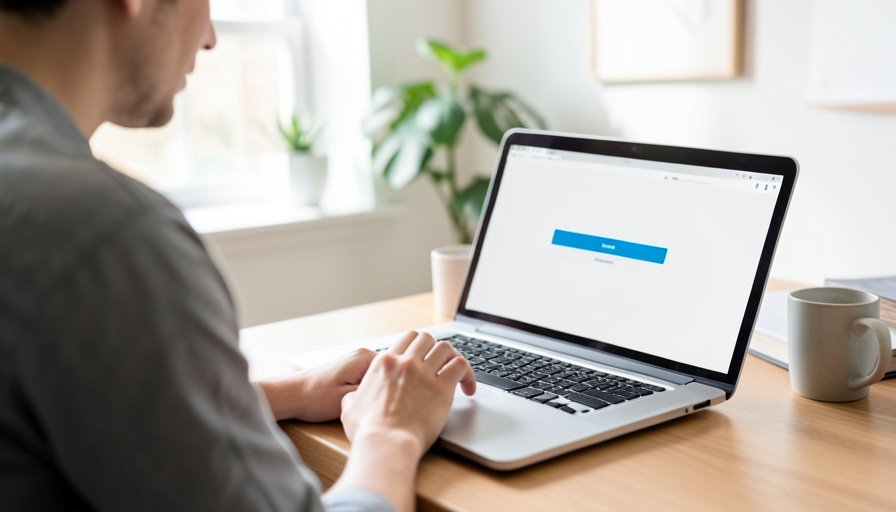
    A person at a laptop on a desk signing in, with a coffee mug and plants in a bright home office

    Passkeys are the upgrade your logins have needed for years: faster than a password, tied to your device or your account, and nearly impossible to phish. Windows 11 now builds them right into Windows Hello, so adding one takes seconds. The only thing that scares people off is the fear of locking themselves out halfway through the switch. Here is the reassuring part: a passkey is an addition to your account, not a replacement for your password, so you cannot lose access by adding one. Keep your old sign-in as a backup, register a spare passkey, and you can move over with zero risk. Here is the safe order to do it in.

    The whole switch is low-stakes once you understand that first point. You are stacking a new, stronger key on top of what you already have, not throwing the old one away.

    Table of Contents

    Toggle
    • The one rule that keeps you safe
    • 1. Set up Windows Hello first
    • 2. Decide where your passkeys will live
    • 3. Create your first passkey on an important account
    • 4. Keep your password and 2FA as backup
    • 5. Register a backup passkey
    • 6. Test signing in with the passkey
    • 7. Manage your passkeys in Windows settings
    • 8. Roll it out to the rest of your accounts
    • 9. Go fully passwordless only once you have backups
    • What To Know
    • Frequently Asked Questions
      • Will I lose access to my accounts if I switch to passkeys?
      • Where should I store my Windows 11 passkeys?
      • Do I need to set up Windows Hello before I can use passkeys?
      • What happens to my passkeys if my laptop breaks?
      • Should I delete my password after adding a passkey?
    • What To Do Next

    The one rule that keeps you safe

    Adding a passkey to an account does not delete your password or your two-factor codes. Both keep working exactly as before, sitting there as a fallback. That means the risky step is never adding a passkey; it is deleting your old methods too soon. So the safe approach is simple: add passkeys freely, keep your password and 2FA in place, register a backup passkey on a second device, and only consider going fully passwordless once you have confirmed the backups work. Follow that order and there is no point where a lost or broken device can lock you out.

    Close-up of a person's hands typing on a laptop keyboard
    Creating a passkey happens in each account’s own security settings, and Windows Hello saves it in a few clicks.

    1. Set up Windows Hello first

    Passkeys on your PC ride on Windows Hello, so it needs to be ready before you start. Open Settings, then Accounts, then Sign-in options, and set up Windows Hello with a fingerprint or face if your PC supports it, plus a PIN. The PIN is not a weakness here; it is your local backup that confirms the passkey if the biometric fails. Microsoft’s own overview of passkeys in Windows walks through this setup. Once Windows Hello works, your PC can save and use passkeys.

    2. Decide where your passkeys will live

    This choice matters more than any other for not losing access. A passkey saved to Windows Hello lives on that one PC, so if the machine dies, that copy goes with it. You have better options. Saving passkeys to your phone lets you sign in on the PC by scanning a code, and the phone travels with you. Best of all, a password manager like 1Password or Bitwarden set as your provider syncs your passkeys across every device you own. On Windows 11 you pick a third-party manager under Settings, then Accounts, then Passkeys, then Advanced options. A synced manager or your phone is the safest home if you never want to be tied to one machine.

    3. Create your first passkey on an important account

    Start with one or two accounts that matter, like your email or your Microsoft account. Sign in to that service in your browser, open its security or sign-in settings, and look for an option to add or create a passkey. When you confirm, Windows Hello prompts you to save it with your fingerprint, face, or PIN, or offers to store it on your phone or manager. That is the whole process. Doing a couple first lets you get comfortable before you roll it out everywhere.

    4. Keep your password and 2FA as backup

    Resist the urge to tidy up by deleting your password right after adding a passkey. Leave your password and any two-factor method in place. They cost you nothing to keep, and they are your safety net if a device is lost, a passkey does not sync, or a site’s passkey support hiccups. The password becomes a rarely used backdoor rather than your daily login, which is exactly what you want. Removing it is a later decision, made only once your backups are proven.

    5. Register a backup passkey

    A hand inserting a small USB security key into the port of a laptop
    A second passkey on a phone or a hardware security key means one dead device never locks you out.

    This is the step that turns off the lock-out risk for good. For each important account, add a second passkey on a different device, so no single failure strands you. That backup can be your phone, another computer, or a hardware security key you plug into the USB port. If your main PC is ever lost or wiped, the second passkey signs you in and lets you remove the old one. Think of it the way you would a spare house key: you make the copy before you need it, not after.

    6. Test signing in with the passkey

    Before you trust the new setup, prove it works. Sign out of the account and sign back in using the passkey, letting Windows Hello or your phone confirm it. Then check that your backup still functions too, whether that is the second passkey or your password. A two-minute test now saves a panic later. If the passkey sign-in works and your fallback works, that account is safely switched.

    7. Manage your passkeys in Windows settings

    Windows 11 keeps a tidy list of the passkeys saved on your PC. Open Settings, then Accounts, then Passkeys, and you can see which sites have a passkey, rename them, or remove ones you no longer use. This is also where you clean up after replacing a device: delete the passkey tied to an old PC once its replacement has its own. Checking this list every so often keeps your sign-ins organized and lets you spot anything unfamiliar.

    8. Roll it out to the rest of your accounts

    With the pattern proven on a couple of accounts, add passkeys to the rest at your own pace. Most major services now support them: email providers, Microsoft, Google, social accounts, and many banks and shops. Each one follows the same path through its security settings. There is no need to convert everything in a day; work through your most important logins first, and let the others follow whenever you next sign in and see the offer to add a passkey.

    9. Go fully passwordless only once you have backups

    Some accounts let you remove the password entirely and go passkey-only, which is the most phishing-resistant setup of all. It is worth doing, but only after you have at least two passkeys on different devices and have tested them. Going passwordless with a single passkey on a single PC is the one way this can bite you, because a dead machine leaves no way in. With backups in place, passwordless is safe and satisfying. Without them, keep the password.

    This article is general information, not security advice, and the exact steps and menu names can change as Windows and each service update their systems. Confirm the current process in Microsoft’s support pages and your account’s own settings, and never share your PIN, recovery codes, or backup keys with anyone.

    What To Know

    • A passkey is added to an account, not a swap for your password, so adding one cannot lock you out.
    • Set up Windows Hello first, since Windows 11 passkeys rely on it, with a PIN as the local backup.
    • Save passkeys to a synced password manager or your phone, not only to one PC, so a dead machine does not strand you.
    • Keep your password and 2FA until you have a tested backup passkey on a second device.
    • Manage passkeys under Settings, then Accounts, then Passkeys, and go passwordless only after backups are proven.

    Frequently Asked Questions

    Will I lose access to my accounts if I switch to passkeys?

    No, not if you follow the safe order. Adding a passkey does not remove your password or two-factor codes, so both still work as a fallback. The only way to lock yourself out is to delete those old methods before you have a tested backup passkey on a second device. Keep your password in place, register a spare passkey on your phone or another device, and you retain full access throughout the switch.

    Where should I store my Windows 11 passkeys?

    You have three choices: on the PC through Windows Hello, on your phone, or in a password manager set as your provider. A passkey saved only to one PC is lost if that machine dies, so for the best safety net, use a synced password manager like 1Password or Bitwarden, or save to your phone, both of which travel with you. You set a third-party manager under Settings, then Accounts, then Passkeys, then Advanced options.

    Do I need to set up Windows Hello before I can use passkeys?

    Yes, for passkeys stored on your PC. Windows Hello, with a fingerprint, face, or PIN, is what protects and confirms a passkey saved to the device. Set it up under Settings, then Accounts, then Sign-in options. The PIN is required as a backup and works if a biometric reader fails. If you store passkeys on your phone or in a synced manager instead, those confirm themselves, but Windows Hello is still needed for any passkey kept on the computer itself.

    What happens to my passkeys if my laptop breaks?

    It depends on where they were saved. Passkeys stored only in Windows Hello on that laptop are gone with it, which is why a backup matters. Passkeys saved in a synced password manager or on your phone are unaffected and available on your other devices. This is the reason to register a second passkey on a different device and keep your password fallback, so a broken laptop is an inconvenience rather than a lockout.

    Should I delete my password after adding a passkey?

    Not right away. Keep your password as a backup until you have at least two passkeys on different devices and have tested that they sign you in. Some accounts then let you go fully passwordless, which is the strongest setup, but only make that move once your backups are proven. Deleting the password too early, especially with a passkey on just one device, is the mistake that can leave you locked out.

    What To Do Next

    Set up Windows Hello, pick where your passkeys will live, and add one to a single important account to see how it feels. Keep your password and 2FA, register a backup passkey on your phone or a second device, and test both before moving on. Then roll passkeys out to the rest of your logins at your own pace, and go passwordless only where you have backups. For more on locking down your accounts, browse the technology section, and the lifestyle section has more on everyday digital habits.


    Tagged: Account Security Passkeys Passwordless Windows 11 Windows Hello
    About the Author

    Simran Kaur

    Simran Kaur explores culture, society, food, festivals, and the small details that shape modern identity. Her writing connects everyday experiences with wider cultural shifts.

    Related Stories

    A person signing in on a laptop while holding a new smartphone at a home-office desk

    Apple Passwords vs 1Password: Passkey Recovery on a Lost iPhone

    October 24, 2026September 24, 2026
    A person signing in to a laptop with a fingerprint sensor, a smartphone resting beside it on a bright desk

    Can Small Businesses Use Passkeys Without Hardware Keys?

    October 21, 2026September 24, 2026
    Two smartphones on a desk, one showing a security shield and the other a QR code, representing a 2FA transfer

    Google vs Microsoft Authenticator: Moving 2FA Without Cloud Backup

    October 16, 2026September 24, 2026
    A living room TV showing an abstract streaming grid with a glowing house-and-lock icon, and a remote on the couch

    9 Signs a Streaming App Is Enforcing Household Rules

    October 15, 2026September 24, 2026
    A smartphone glowing with a padlock icon on a dark desk, a faint cloud shape above it and a blurred laptop behind

    Authenticator App Backup Failures: What the 2026 Data Shows

    October 12, 2026September 24, 2026
    A smartphone showing a security shield with a cloud backup icon and a hardware security key on a desk

    10 Authenticator App Alternatives With Better Phone-Loss Recovery

    October 10, 2026September 23, 2026

    Leave a Reply Cancel reply

    You must be logged in to post a comment.

    Read Next

    A family sitting on a couch smiling at photos on a tablet held between them

    6 Google Photos Alternatives for Family Shared Albums

    October 24, 2026September 24, 2026

    Sharing a family album in Google Photos often means everyone needs the same account or a maze of partner-sharing settings. These six alternatives let a whole family add to one album without merging or handing over logins, and here is who each one fits.

    Hands holding a smartphone showing a messaging app with a red warning icon beside a message, with a SIM card on the desk

    11 Settings to Check When RCS Won’t Send on Dual-SIM

    October 22, 2026September 24, 2026

    Your texts send fine from one SIM but stall as RCS on the other, and you can’t figure out why. On a dual-SIM Android phone, RCS registers per number, so one line can work while the other quietly fails. Here are 11 settings to check to get both sending.

    An overhead desk flat lay with a laptop, a stack of printed pages, a magnifying glass over a document, and a smartphone

    11 PDF Editor Alternatives With Free, Unlocked OCR

    October 20, 2026September 24, 2026

    Big-name PDF editors love to put optical character recognition behind a paid plan. These 11 alternatives, from full editors to open-source utilities to apps you already own, hand you OCR for free.

    A person at a home desk holding a smartphone next to a laptop showing a sign-in screen with a padlock icon

    How to Recover a Google Account Without a Phone

    October 19, 2026September 24, 2026

    Locked out of a Google account and the code is going to a phone number you no longer have? You can still get back in. Here’s how Google’s recovery process works without a phone, and how to give it your best shot.

    More

    Recent Articles

    A white video doorbell camera mounted beside a residential front door with a visitor reaching for the button

    6 Ring Doorbell Alternatives With Local Storage, No Fees

    A person at a kitchen table holding a smartphone that shows a news feed of article cards, next to a coffee mug

    How to Fix a News App Showing Old Headlines

    A person on a couch pointing a remote at a smart TV showing a sign-in screen with an on-screen keyboard

    Why a Streaming App Keeps Signing You Out on Smart TV

    A person signing in on a laptop while holding a new smartphone at a home-office desk

    Apple Passwords vs 1Password: Passkey Recovery on a Lost iPhone

    A person peeling the backing off a small wireless security sensor to stick on a door frame, with moving boxes behind

    6 Ring Alarm Alternatives Renters Can Take When Moving

    A black air fryer on a kitchen counter with the drawer pulled open and a hand reaching toward the controls

    15 Checks When Your Air Fryer Won’t Heat But Turns On

    A family sitting on a couch smiling at photos on a tablet held between them

    6 Google Photos Alternatives for Family Shared Albums

    A traveler at an airport self-service kiosk holding an open passport and a boarding pass, looking concerned

    9 Passport Name Mismatches That Block Airline Check-In

    A worried college student at a desk reading a printed scholarship letter next to an open laptop

    Scholarship Scam Red Flags Students Miss Most Often

    A person at a kitchen table checking coverage on a laptop while holding a mail-in health screening document

    Does Insurance Have to Cover At-Home Colon Cancer Tests?

    A doctor using a stethoscope to check a teenage athlete during a sports physical while a parent sits nearby

    Can You Use an HSA for Your Child’s Sports Physical?

    A person seated at a kitchen table using an upper-arm blood pressure cuff with the arm resting supported on the table

    11 Measurement Mistakes That Fake a High Blood Pressure Reading

    A person at a laptop holding a plain credit card with a concerned expression, papers and a phone on the desk

    10 Credit Freeze Mistakes That Delay Card Applications

    Hands holding a smartphone showing a messaging app with a red warning icon beside a message, with a SIM card on the desk

    11 Settings to Check When RCS Won’t Send on Dual-SIM

    A tenant and a property manager reviewing a lease document at a table with keys and a pen

    Can a Landlord Require Renters Insurance With Liability Limits?

    Recent Comments

    • Help With Law Coursework on Benefits Of Digital Citizenship For Students
    • mTouchlabs on How to Create An Educational App From Scratch
    • Web Development on The Rise Of Artificial Intelligence: Prospects and Potential Threats
    • mekvahan on Never hesitate to service your vehicle- here are the facts
    • Maniha shah on How E-learning helps Achieving Academic Objectives?
    • Qdesq on Benefits Of Having A Virtual Office Space
    • Sekhar Sahu on 5 Modern Study Table Designs to Enhance Your Home
    • coca on 5 Design Tips for Elegant Kitchen Remodeling That You’ll Love in 2020
    • T1000 on Ads Supply Review – A Self-Service Advertising Platform
    • Techolas on Software Testing: What is It and Why You Should Be There
    #techreviews

    Topics

    • Autos
    • Business
    • Education
    • Entertainment
    • Family & Personal
    • Finance
    • Health
    • Home Improvement
    • Law
    • Lifestyle
    • News
    • Technology
    • Travel

    Archives

    • October 2026
    • September 2026
    • June 2026
    • April 2026
    • January 2025
    • June 2023
    • May 2023
    • March 2023
    • February 2023
    • January 2023
    • December 2022
    • November 2022
    • October 2022
    • September 2022
    • August 2022
    • July 2022
    • June 2022
    • May 2022
    • April 2022
    • March 2022
    • February 2022
    • January 2022
    • December 2021
    • November 2021
    • October 2021
    • September 2021
    • August 2021
    • July 2021
    • June 2021
    • May 2021
    • April 2021
    • March 2021
    • February 2021
    • January 2021
    • December 2020
    • November 2020
    • October 2020
    • September 2020
    • August 2020
    • July 2020
    • June 2020
    • May 2020
    • April 2020
    • March 2020
    • February 2020
    • January 2020
    • December 2019
    • November 2019
    • October 2019
    • September 2019
    • August 2019
    • July 2019
    • June 2019
    • May 2019
    • April 2019
    • March 2019
    • February 2019
    • January 2019
    • December 2018
    • November 2018
    • October 2018
    • September 2018
    • July 2018
    • June 2018
    • May 2018
    • April 2018
    • March 2018
    • February 2018
    • January 2018
    • December 2017
    • November 2017
    • October 2017
    • September 2017
    • August 2017
    • July 2017
    • June 2017
    • May 2017
    • April 2017
    • March 2017
    • February 2017
    • January 2017
    • December 2016
    • November 2016
    • October 2016
    • September 2016
    • August 2016
    • July 2016
    • June 2016
    • May 2016
    • April 2016
    • March 2016
    • February 2016
    • January 2016
    • December 2015
    • November 2015
    • October 2015
    • September 2015
    • August 2015
    • July 2015
    • June 2015
    • May 2015
    • April 2015
    • March 2015
    • February 2015
    • January 2015
    • December 2014
    • June 2014
    • March 2013
    • February 2013

    Pages

    • Home
    • Contact

    Search

    Useful Sites

    • RunCloud
    • XE

    Stay Updated

    • Youtube
    [mc4wp_form id="2880"]

    Recent

    • How to Switch to Passkeys on Windows 11 Safely
    • 6 Ring Doorbell Alternatives With Local Storage, No Fees
    • How to Fix a News App Showing Old Headlines
    • Why a Streaming App Keeps Signing You Out on Smart TV
    • Apple Passwords vs 1Password: Passkey Recovery on a Lost iPhone
    • 6 Ring Alarm Alternatives Renters Can Take When Moving
    • 15 Checks When Your Air Fryer Won’t Heat But Turns On
    • 6 Google Photos Alternatives for Family Shared Albums
    • 9 Passport Name Mismatches That Block Airline Check-In
    © Copyright 2026 by Visboo. All Rights Reserved.
    Go to mobile version