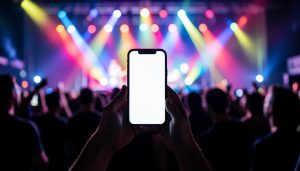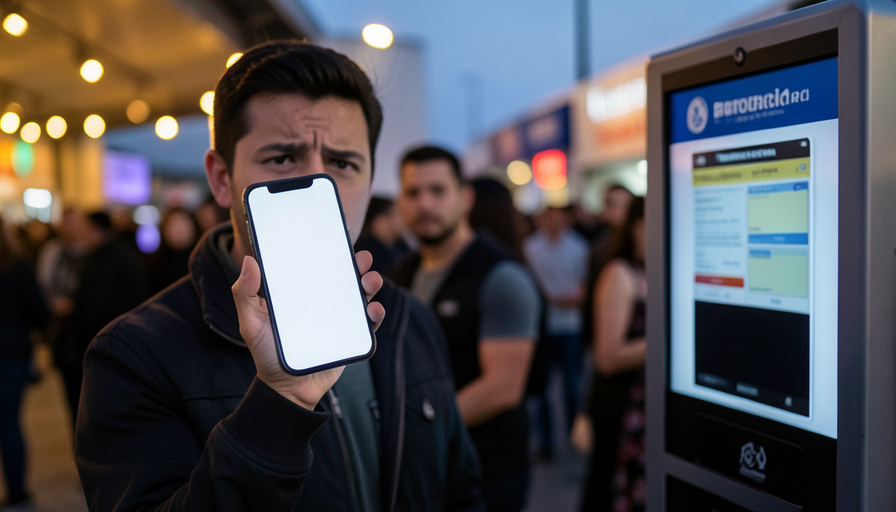
There are few worse feelings than reaching the front of the entry line, holding up your phone, and watching the scanner blink “invalid barcode” while a crowd builds behind you. Take a breath, because this is almost always fixable in under a minute, and the cause is usually simple. Modern tickets use a barcode that changes every few seconds on purpose, so a screenshot or a stale screen fails even when the ticket is genuinely yours. The fix is to present the live ticket the right way, and if that does not work, the box office is a reliable backstop. Here is the quick checklist to get through the gate, in the order most likely to solve it.
The single most common reason for an invalid barcode is also the easiest to fix: you are showing a screenshot instead of the live ticket. Start there, then work down the list if it does not scan.
Why modern tickets show “invalid barcode”
Most major tickets no longer use a fixed image. Systems like Ticketmaster’s SafeTix and the AXS Mobile ID use a rotating barcode or QR code that refreshes every several seconds to stop resale fraud and screenshots. A SafeTix code, for instance, cycles on a short timer. When you screenshot one, you freeze a code whose time window has already passed, so the scanner reads it and rejects it as invalid. The same message can also mean the ticket was already scanned, it is for the wrong date, or you are signed into the wrong account. Knowing which of these it is points you straight to the fix.

Fix it fast: open the live ticket in the app
Go straight to the official app or the wallet pass where the ticket lives and open the ticket itself, so the barcode is refreshing on screen rather than frozen in a saved image. If it still looks stuck, pull down to refresh, or fully close the app and reopen it so it pulls a fresh code. Turn your screen brightness up and hold the phone steady and flat to the scanner, since a dim or angled screen can fail a code that is otherwise valid. For a rotating ticket, there is no screenshot workaround, so the live, refreshing barcode in the app is the only version that will scan.
Get online, or add it to your wallet before you arrive
Venues are notorious dead zones, and a rotating barcode may need a connection to refresh. The best habit is to open and view your tickets before you reach the gate, ideally before you even get to the venue, so they are loaded and ready. Where the ticket supports it, adding it to your phone’s wallet lets many tickets work offline, which is a lifesaver in a packed arena with no signal. If your barcode will not load in the entry line, step aside, connect to any available venue Wi-Fi or move to better reception, let it refresh, and try again rather than holding up the queue.

Check you are in the right account
If tickets were transferred to you, an invalid message can mean the transfer was never fully accepted or you are signed into a different account than the one that received them. Open the app, confirm you are logged into the correct account, and make sure any transfer shows as accepted rather than pending. The reverse also trips people up: if you sent your tickets to a friend, they no longer work on your phone, only on theirs. Sorting out who holds the live ticket, and on which login, clears up a surprising share of gate problems.
Sync your clock and update the app
Because these barcodes are time-based, a phone with the wrong clock can generate a code the scanner rejects. In your settings, set the date and time to update automatically so your phone agrees with the venue’s system. While you are at it, make sure the ticket app and your phone’s software are up to date, since an old app version is a common cause of tickets that will not load or refresh. These two checks take seconds and quietly fix a lot of the odder barcode failures.
When nothing works, the box office is your backstop
If you have tried the live ticket, a refresh, a connection, the right account, and an updated app, and it still will not scan, do not despair at the gate. Head to the venue box office or guest services with your photo ID and your order confirmation or the email tied to the purchase. Staff can look up your order, verify it is legitimate, and reissue or manually admit you. This is exactly what that counter is for, and arriving a little early leaves you time to use it. A genuine ticket you paid for will get you in, even when the barcode is being difficult.
One caution worth remembering: for rotating tickets like SafeTix and AXS Mobile ID, a screenshot will never scan, which is also why buying resale tickets that a stranger sends only as a screenshot is risky. Always transfer tickets through the official app, keep them in your own account, and treat a seller who can only send an image as a warning sign.
What To Know
- Most major tickets use a rotating barcode that refreshes every few seconds, so a screenshot fails because its code has expired.
- The first fix is to open the live ticket in the official app or wallet, refresh it, and turn up your screen brightness.
- View or download your tickets before you arrive, and add them to your phone’s wallet for offline entry where supported.
- Confirm you are signed into the right account and that any transfer was accepted, and set your phone’s clock to automatic.
- If it still will not scan, the box office can look up your order with your ID and confirmation and admit you.
Frequently Asked Questions
Why does my mobile ticket say invalid barcode at the gate?
Usually because you are showing a screenshot of a rotating barcode, which changes every few seconds, so the frozen image has expired by the time it is scanned. It can also mean the ticket was already scanned, it is for a different date, or you are signed into the wrong account. Open the live ticket in the official app so the barcode refreshes on screen, confirm the date and account are correct, and try again. The live, moving barcode is the only one that will scan.
Why won’t a screenshot of my ticket scan?
Because major ticketing systems now use dynamic barcodes designed to defeat screenshots. A SafeTix or AXS Mobile ID barcode cycles on a short timer, so a saved image captures only one expired moment and the scanner rejects it. There is no workaround for these tickets; you have to present the live barcode from the official app or an official wallet pass. If a reseller only sent you a screenshot, that ticket may not be valid at all, which is a reason to be cautious.
Do I need internet for my mobile ticket to work?
Often yes, at least to load and refresh it, and venue signal is frequently poor. The safest approach is to open your tickets before you arrive so they are loaded, and to add them to your phone’s wallet when the ticket supports it, since wallet passes can work offline for many events. If your barcode will not appear in line, move to better reception or connect to venue Wi-Fi, let it refresh, and then step back up to the scanner.
My tickets were transferred to me, why won’t they scan?
Check that the transfer was fully accepted and that you are logged into the account that received them, not another login. A pending or unaccepted transfer, or being signed into the wrong account, will show the ticket as invalid or missing. Open the official app, verify the transfer status, and confirm the tickets appear in your account. If they were sent to a different email or phone number than the one you are using, sign in with that account instead.
What should I do if my ticket still won’t scan?
Go to the box office or guest services with your photo ID and your order confirmation or purchase email. Staff can look up your order, confirm it is genuine, and reissue the ticket or admit you manually. This is the reliable backstop when the app, a refresh, your connection, your account, and an update have all failed. Arriving a bit early gives you time to sort it out at the counter without missing the start of the event.
What To Do Next
At the gate, work the list in order: open the live ticket in the app, refresh it, turn up brightness, get online or use a wallet pass, confirm the right account, and sync your clock. If it still fails, head to the box office with your ID and confirmation. For related help, see our guide to fixing concert ticket transfer errors and how to keep a wallet pass working offline. The entertainment section has more on getting into your events without a hitch.