Here is the honest starting point: there is no official scoreboard of how often each CarPlay fix works, so anyone quoting exact success rates is guessing. What we do have is a clear picture of what breaks wireless CarPlay, especially right after an iPhone update, and a short list of fixes that owners and guides consistently report clearing the problem. The usual culprit is not your car at all. It is a pairing record that an update left half-broken, so your phone and the car keep losing their handshake. Work through the fixes below in order, most reliable first, and the drops usually stop.
Wireless CarPlay feels like magic when it works and maddening when it does not, precisely because there is no cable to jiggle. The connection lives in software and radio, which is exactly why a software update can upset it, and why the fixes are about rebuilding that connection rather than replacing hardware.
Why wireless CarPlay drops after an iOS update
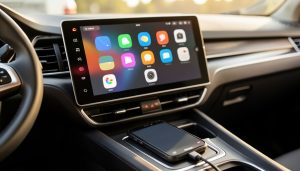
Wireless CarPlay uses two radios at once: Bluetooth to find and pair with the car, then a 5 GHz Wi-Fi link to stream the actual screen. An iPhone update can leave the old pairing record only half-intact, so the two devices connect, lose sync, and reconnect in a loop. On top of that, the 5 GHz link is easy to disturb: a personal hotspot running on your phone, a dashcam or other Wi-Fi accessory broadcasting in the cabin, or a second phone fighting for the connection can all knock it loose. So the fix is usually to rebuild the pairing cleanly and clear whatever is competing with it, not to blame the car.

The fix that works most often: forget the car and re-pair
Start here, because rebuilding the pairing from scratch is the single most commonly reported fix for post-update drops. On your iPhone, open Settings, then General, then CarPlay, choose your vehicle, and tap Forget This Car. For good measure, also remove the car under Settings and Bluetooth. Then restart both the phone and the car, and set up CarPlay again from the beginning as if it were a new vehicle. This clears the corrupted pairing record the update left behind and replaces it with a clean one, which is why it resolves so many cases that a simple restart alone does not.

Reset your network settings
If re-pairing alone does not hold, reset the phone’s network settings, since wireless CarPlay leans on Bluetooth and Wi-Fi and an update can scramble both. On the iPhone, go to Settings, then General, then Transfer or Reset iPhone, then Reset, and choose Reset Network Settings. One caveat worth knowing: this erases your saved Wi-Fi passwords, so you will need to rejoin your home and work networks afterward. It does not delete your photos or apps. After the reset, pair CarPlay again, and the connection often becomes stable because the underlying radio settings start fresh.
Restart the phone and the head unit
Do not skip the plain restart, because a stuck connection sometimes just needs both ends rebooted. Power your iPhone fully off, wait about thirty seconds, and turn it back on. Then restart the car’s infotainment system, which usually means switching off the ignition, waiting up to a minute for it to power down completely, and starting the car again. Bringing both back up fresh can clear a temporary glitch that was causing the drops, and it is worth doing before the bigger steps, though on its own it tends to be less durable than a full re-pair.
Clear the interference: hotspot, dashcams, and second phones
Because the 5 GHz link is sensitive, remove whatever competes with it. Turn off your iPhone’s personal hotspot while you drive, since an active hotspot can pull the phone’s Wi-Fi away from the car. If you run a dashcam or another Wi-Fi gadget in the cabin, test with it switched off, as its signal can crowd the same band. And make sure only one phone is set to connect, because a second paired phone can grab the link mid-drive. Removing these competitors often steadies a connection that drops seemingly at random.
Update iOS and your car’s firmware
Finally, close the gap on both sides. If a specific iPhone update introduced the problem, Apple usually patches it in a following release, so keep iOS current once the disconnects appear. Just as important, check whether your car maker has an infotainment or head-unit firmware update, since the car’s software has to keep pace with new iPhone behavior and an out-of-date system can be the reason a freshly updated phone will not stay connected. Updating both the phone and the car so they match is often what makes a stubborn case finally hold.
What To Know
- There is no public dataset of CarPlay fix success rates, so the steps here are ordered by what owners and guides most commonly report working.
- Post-update drops usually come from a corrupted Bluetooth and Wi-Fi pairing record, not from your car.
- The most reliable fix is to forget the car in CarPlay and Bluetooth settings, restart both devices, and pair from scratch.
- If that does not hold, reset network settings on the iPhone, knowing it erases saved Wi-Fi passwords, then re-pair.
- Turn off hotspots and cabin Wi-Fi gadgets, allow only one phone to connect, and update both iOS and the car’s firmware.
Frequently Asked Questions
Why does wireless CarPlay keep disconnecting after an iOS update?
Usually because the update left the pairing between your phone and car only half-intact, so the two connect, lose sync, and reconnect in a loop. Wireless CarPlay relies on Bluetooth and a 5 GHz Wi-Fi link, and a corrupted pairing record after an update disturbs both. The most effective fix is to forget the car in your iPhone’s CarPlay and Bluetooth settings, restart both devices, and set up the connection again from scratch so it rebuilds cleanly.
How do I make CarPlay connect from scratch?
On your iPhone, open Settings, then General, then CarPlay, select your vehicle, and tap Forget This Car, then also remove it under Settings and Bluetooth. Restart the phone and the car, then start CarPlay setup again as if the vehicle were new. Rebuilding the pairing this way clears the leftover record that an update tends to break, which is why it resolves many cases that a simple restart does not.
Does resetting network settings fix CarPlay, and what does it erase?
It often helps, because wireless CarPlay depends on Wi-Fi and Bluetooth that an update can scramble, and resetting starts those radios fresh. On the iPhone, go to Settings, General, Transfer or Reset iPhone, Reset, then Reset Network Settings. Be aware it erases your saved Wi-Fi passwords, so you will need to rejoin your networks, but it does not delete photos, apps, or other data. Pair CarPlay again afterward.
Can a phone hotspot or dashcam cause CarPlay to drop?
Yes. Wireless CarPlay streams over a 5 GHz Wi-Fi link that is easy to disturb. An active personal hotspot on your phone can pull its Wi-Fi away from the car, and a dashcam or other Wi-Fi accessory in the cabin can crowd the same band. A second paired phone can also grab the connection mid-drive. Turning off the hotspot, testing with cabin gadgets off, and letting only one phone connect often steadies a link that drops for no obvious reason.
Should I switch to wired CarPlay if wireless keeps dropping?
It is a reasonable fallback. A wired connection removes the Bluetooth and Wi-Fi handshake that wireless depends on, so it tends to be more stable, at the cost of plugging in a cable each time. If you have worked through re-pairing, a network reset, clearing interference, and firmware updates and the drops persist, using a good-quality cable is a dependable option while you wait for a software fix. Our comparison of wired and wireless CarPlay disconnects goes deeper on the trade-offs.
What To Do Next
Go in order: forget the car and re-pair first, then reset network settings, restart both devices, clear any hotspot or cabin Wi-Fi gadgets, and update iOS and your car’s firmware. That sequence clears most post-update drops. If you are weighing whether to give up on wireless, see our comparison of wired versus wireless CarPlay disconnects, and the autos section has more on getting your in-car tech to behave.