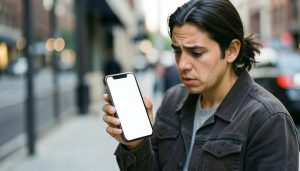
A blank telehealth screen in Safari is almost never a broken link. It is usually a privacy or permission setting quietly blocking the video, and each one takes seconds to fix.
Your appointment starts in two minutes, you tap the link your clinic sent, and Safari opens to a white void. No video, no doctor, no obvious button to press. It is a stressful moment, but the cause is predictable: telehealth visits lean on your camera, pop-up windows, and cross-site resources that Safari’s privacy features are built to block by default. Work down this list and you will almost certainly be in the visit before it is your turn.
In Brief
The most common fix is allowing camera and microphone access for the site, since a blocked permission often loads a blank frame instead of your video. After that, turn off the pop-up blocker for the visit, disable Prevent Cross-Site Tracking, and make sure cookies are allowed. If it still fails, update Safari or open the same link in Chrome, which more telehealth platforms fully support.
Try these first, in order:
- Allow camera and microphone for the site.
- Allow pop-ups for the telehealth page.
- Turn off Prevent Cross-Site Tracking.
- Reload the page, or open it in Chrome.
Table of Contents
Start here: allow camera and microphone

A blocked camera is the number one reason a visit loads as a blank or black rectangle. Safari asks for permission each time and, if you dismissed the prompt or tapped Don’t Allow once, it stops asking. On a Mac, open the Safari menu, choose Settings for This Website, and set both Camera and Microphone to Allow or Ask, then reload. On an iPhone or iPad, tap the “aA” or page-settings icon in the address bar, choose Website Settings, and do the same. Apple’s guide to per-site settings in Safari walks through where these live.
Turn off the pop-up blocker for the visit
Many telehealth platforms launch the actual video call in a new window, and Safari’s pop-up blocker silently kills it, leaving you staring at the original blank page. On a Mac, go to Safari, then Settings, then Websites, then Pop-up Windows, find your clinic’s site, and set it to Allow. On iPhone, open Settings, then Apps, then Safari, and turn off Block Pop-ups. Reload the link afterward and the visit window should appear.
Disable Prevent Cross-Site Tracking for the appointment
This is the newer culprit that catches people off guard. Telehealth video is frequently powered by a third-party provider embedded in your clinic’s page, and Safari’s Prevent Cross-Site Tracking blocks exactly that kind of cross-site connection. Turn it off temporarily in Safari, then Settings, then Privacy on a Mac, or Settings, then Apps, then Safari on iPhone. You can switch it back on after the visit. It is a privacy feature worth keeping, just not while it is blocking your doctor.
Make sure cookies are allowed
If you have set Safari to Block All Cookies, telehealth sessions that rely on a login or a temporary token will not hold, and the page can render empty. On a Mac, check Safari, then Settings, then Privacy, and make sure Block All Cookies is unchecked. On iPhone, it is under Settings, then Apps, then Safari, then Advanced. You do not need to accept every tracker; you just need the site’s own cookies to work.
Switch off content blockers and extensions

Ad and content blockers are aggressive, and they can strip out the script that draws the video widget, which looks identical to a broken link. Disable any content blocker for the site, or open the link in a Safari window with extensions turned off. On iPhone, temporarily switch off your content blocker in Settings, then Apps, then Safari, then Extensions. Reload once the blocker is paused and see whether the video appears.
Update Safari, or just switch to Chrome
Some telehealth platforms only fully certify Chrome and treat Safari as best-effort, so an outdated Safari or an unsupported feature can leave you blank. Update your device to the latest iOS or macOS to get the current Safari, and if you are short on time, paste the same appointment link into Google Chrome, which many providers recommend as the primary browser. Clinics like OhioHealth publish their supported browsers and troubleshooting steps, so a quick check there can save you the guesswork.
Reset the basics if it still fails
A few quick checks clear the remaining cases. Leave Private Browsing, which blocks the storage many visits need, and open the link in a normal tab. Clear Safari’s cache under Settings, then Apps, then Safari, then Clear History and Website Data. Close any other app using your camera, like FaceTime or Zoom, since only one can hold it at a time. Finally, confirm you are not too early or too late, since some appointment links only open in a short window around your scheduled time.
This article is general technical guidance, not medical advice. If you are having a medical emergency, call 911 or your local emergency number rather than waiting on a video visit, and contact your provider’s office directly if you cannot connect to a scheduled appointment.
What To Know
- A blocked camera or microphone is the most common cause of a blank telehealth screen.
- Safari’s pop-up blocker and Prevent Cross-Site Tracking both break many visit flows by default.
- Blocking all cookies or running a content blocker can render the video area empty.
- When time is short, opening the same link in Chrome often works immediately.
Frequently Asked Questions
Why does my telehealth link open to a blank white screen in Safari?
Usually a privacy or permission setting is blocking the video. The top causes are a denied camera or microphone permission, a blocked pop-up window, or Prevent Cross-Site Tracking stopping the embedded video provider. Fixing those in Safari’s settings resolves most blank screens.
Should I use Safari or Chrome for a telehealth visit?
Either can work, but more telehealth platforms fully support Chrome, so if Safari gives you a blank screen and your appointment is imminent, paste the link into Chrome. Longer term, keep Safari updated and adjust the privacy settings that block visits.
How do I let a website use my camera in Safari?
On a Mac, open the Safari menu and choose Settings for This Website, then set Camera and Microphone to Allow. On iPhone or iPad, tap the page-settings icon in the address bar, choose Website Settings, and allow the camera and microphone. Reload the page afterward.
Is it safe to turn off Prevent Cross-Site Tracking?
Turning it off briefly for a telehealth visit is low risk, and you can switch it back on immediately after. It is a general privacy feature, not a security barrier, and telehealth video often needs the cross-site connection it blocks.
The link still will not load. What should I do?
Clear Safari’s cache, leave Private Browsing, close other apps using your camera, and confirm you are within your appointment’s time window. If it still fails, call your provider’s office, since they can resend the link, move you to a phone visit, or flag a platform outage.
What To Do Next
With a few minutes before your visit, run the top four in order: camera and microphone, pop-ups, cross-site tracking, then reload or switch to Chrome. If none of it works, call the clinic rather than miss the appointment, since they can often start by phone. For more practical health and device guidance, browse Visboo’s Health and Technology sections.