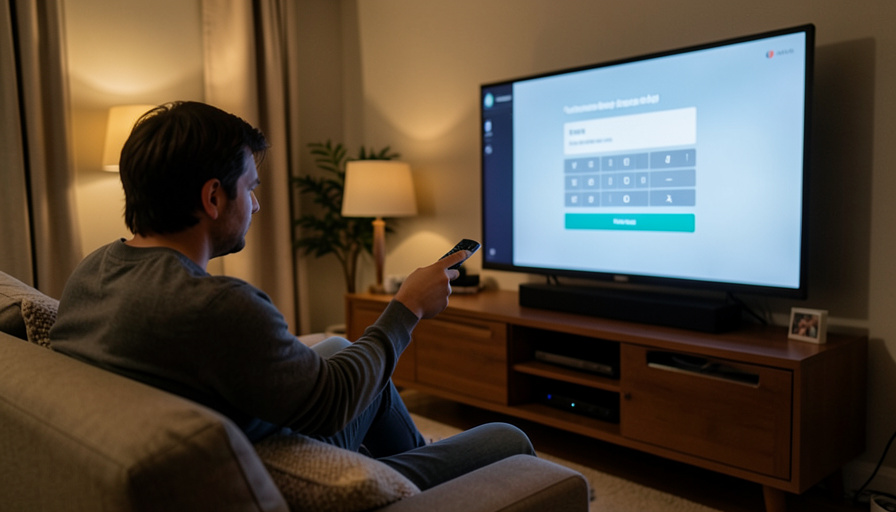
You settle in, open the app, and there it is again: the sign-in screen, asking you to peck out your password one letter at a time with the remote. A streaming app that keeps logging you out on a smart TV is one of the most common living-room annoyances, and the good news is it is almost always fixable. The cause is usually a stale login token, an outdated app, a wrong clock, low storage, or a device limit on your plan that you have quietly bumped into. Here is how to fix it, starting with the fastest checks.
Most of these take under two minutes and cost nothing. Work down the list and stop as soon as the app stays logged in, since the early steps solve the majority of cases.
The Short Answer
Yes, you can almost always fix it. A streaming app signs you out when its saved login stops working, and that happens for a handful of reasons: the app or TV software is out of date, the login token got corrupted, the TV’s clock is wrong, the TV is low on storage and dumped the saved login, or you have exceeded the number of devices or the household your plan allows. The fix is to refresh the login and the app first, then rule out storage, network, and account limits. A clean reinstall clears most stubborn cases.

Update the app and your TV’s software
Start here, because outdated software is the quiet culprit behind a lot of repeated sign-outs. An old version of a streaming app can mishandle its login token, and old TV firmware can break the storage the app relies on. Open your TV’s app store and check the streaming app for an update, then open the TV’s settings and install any pending system or firmware update. On many smart TVs, apps do not auto-update, so a manual check often clears a bug the developer already fixed.
Sign out fully, then sign back in
A gentle reset of the login itself fixes a surprising number of cases. Inside the app, find the account or profile menu and choose sign out, rather than just closing the app. Wait a moment, reopen it, and sign in again. This forces the service to hand your TV a fresh login token in place of the stale one that kept failing. If the app offers “sign out of all devices” in your online account, doing that once and signing back in only on the TV can clear a tangled session.
Clear the app’s cache or reinstall it
When a refresh does not hold, the app’s stored data is likely corrupted. On TVs that allow it, go to the app’s settings and clear its cache, or clear data, which wipes the bad login and starts clean. If there is no cache option, delete the app and reinstall it from your TV’s store, then sign in once more. A reinstall is the reliable fix for an app that logs you out no matter what, because it removes every trace of the broken session.
Check the TV’s date and time
This one is easy to miss and often decisive. Login tokens and the secure connections behind them depend on an accurate clock, so if your TV’s date or time is wrong, the app can quietly decide your session is invalid and sign you out. Open the TV’s settings, find date and time, and set it to automatic so it syncs over the internet. A TV that lost its time after a power cut is a classic cause of an app that will not stay logged in.
Cold-restart the TV

A proper power cycle is more than tapping the remote’s power button, which usually only sleeps the TV. Turn the TV off, unplug it from the wall for about two minutes so it fully powers down, then plug it back in and open the app. This clears temporary memory glitches that can interfere with saved logins. It is the oldest fix in the book because it keeps working, and it takes less time than re-typing your password again.
See if you have hit your plan’s device or household limit
If the fixes above do not stick, the problem may not be your TV at all. Streaming services cap how many devices can be signed in or streaming at once, and several tightened their household and device-trust rules through 2026. When you add a new phone, tablet, or TV beyond your plan’s limit, the service can sign out an older device to make room, which feels random from the couch. Sign into your account on a computer, open the devices or “manage access” page, and remove any old or unfamiliar devices. If your household regularly exceeds the plan’s streams, an upgrade or an extra-member add-on may be the real fix.
Rule out a password change or a security flag
Changing your account password signs you out everywhere on purpose, so if the logouts started right after you updated it, that is expected and a fresh sign-in settles it. The same happens if you, or someone sharing the account, used “sign out of all devices.” A repeated, unexpected logout can also mean the service flagged unusual activity and is forcing re-authentication. If that seems possible, sign in on a trusted device, change your password to something new, and check the account’s recent-activity or security page for logins you do not recognize.
Check your network and storage
Two background issues can knock an app loose. A shaky Wi-Fi connection, or a VPN that keeps changing your apparent location, can make a service distrust the session and sign you out, so test the app on a stable connection with any VPN turned off. Separately, a TV that is low on internal storage may offload app data, including your saved login, to free up space. In the TV’s settings, check storage and delete apps or files you do not use, giving the streaming app room to keep its login saved.
Use the on-screen code instead of typing your password
When you do need to sign in again, skip the painful on-screen keyboard. Most services offer an activation method: the TV shows a short code and a web address, you open that page on your phone or computer, sign in there, and enter the code to link the TV. It is faster, and it avoids typos that can lock you out or trigger extra security checks. It also tends to create a more stable session than fumbling your password in on the remote.
When to contact the service
If you have updated, reinstalled, fixed the clock, cleared devices, and secured the account and the app still logs you out, the issue may be on the service’s end or specific to your TV model. Note which app it is, your TV brand and model, and what you have already tried, then contact the streaming service’s support or check its status page for a known outage. Persistent, single-app logouts across a fresh install are worth reporting, since they often point to a server-side or device-compatibility bug the service can address.
This article is general troubleshooting guidance. Steps vary by TV brand and streaming app, and if you suspect your account was accessed by someone else, change your password and review your account’s security settings right away.
What To Know
- Most repeated sign-outs come from an outdated app, a corrupted login, a wrong clock, low storage, or a device limit.
- Update the app and TV software, then sign out and back in, before anything more involved.
- Setting the TV’s date and time to automatic fixes a surprising number of stubborn cases.
- Services tightened device and household rules through 2026, so a new device can bump an old one off.
- A clean reinstall clears most sessions that refuse to stay logged in.
Frequently Asked Questions
Why does my smart TV keep logging me out of one app but not others?
A single app logging you out usually points to that app’s stored data or its version, not your whole TV. The saved login token for that app is likely corrupted, or the app is outdated while the others are current. Update it, sign out and back in, and if it continues, clear its cache or reinstall just that app. If every app on the TV signs you out, look instead at the TV’s clock, storage, or a system update.
Does clearing the cache delete my downloads or settings?
Clearing an app’s cache removes temporary data and usually logs you out, but it does not touch your account, your watch history, or your profile, which live on the service’s servers. Clearing “data” is more thorough and resets the app to a fresh state, so you will sign in again afterward. Neither deletes anything permanent from your account. Any offline downloads stored on the TV could be removed, so re-download those if needed after signing back in.
Can too many devices cause a streaming app to sign me out?
Yes. Streaming plans limit how many devices can be signed in or streaming at once, and going over that limit can push an older device, like your TV, off the account. This became more common as services tightened household and device rules. Sign into your account on a computer, open the manage-devices page, and remove devices you no longer use. If your household genuinely needs more streams, upgrading the plan or adding a member is the lasting fix.
Is a streaming app signing me out a sign my account was hacked?
Usually not, but it can be. Most logouts are harmless, caused by app or software issues. However, a sudden wave of sign-outs, especially with new devices you do not recognize on your account, can mean someone else logged in or the service forced re-authentication after flagging activity. If you have any doubt, change your password on a trusted device and review the account’s recent-activity page for unfamiliar logins.
Why do I have to keep re-entering my password after every restart?
If the login never survives a restart, the TV is probably failing to store it, often because internal storage is full or the app data is corrupted. Free up storage in the TV’s settings, then reinstall the app so it can save a clean login. A wrong clock can also cause this, so set the date and time to automatic. If it still forgets after every restart, the app or TV firmware likely needs an update.
What To Do Next
Run the quick fixes in order: update the app and TV, sign out and back in, check the clock, and cold-restart. If the app still will not hold your login, reinstall it, clear old devices from your account, and rule out storage and network trouble. Most of the time one of those brings it back for good. For more on getting the most from your subscriptions, see our guide to streaming subscription traps and your rights, and the entertainment section has more.