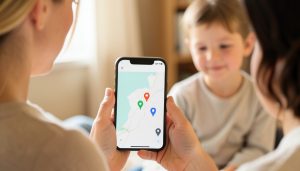
You wanted one small thing: to see that your kid made it to practice. Life360 gives you that, then piles on a driving score, a hard-braking report, a crash-detection upsell, and a company that reporting has tied to selling location data. Plenty of families want the “got there safe” part without the surveillance and the subscription. The good news is you do not need a special app for it. The phones your family already carries can share location for free, with no scores attached. Here is how to set it up, agree on it, and leave Life360 cleanly.
This is a setup guide, not a ranking. If you want a side-by-side of the best score-free apps first, our roundup of Life360 alternatives without driving scores compares them on platform, cost, and privacy. Once you know which fits, come back here to switch it on.
First, decide what you need
Before installing anything, name the goal. Most families want presence: a live pin that answers “are they where they should be” and “did they get home.” That is different from monitoring, which is what Life360’s driving reports do when they grade speed and braking. If presence is all you want, the tools below cover it without collecting a minute of driving data. Deciding this up front keeps you from re-creating the exact tracking you are trying to leave.

The fastest switch: use what is already on the phones
You probably do not need to install anything. Both major phone platforms have free location sharing built in, with no driving scores and no extra cost.
If your whole family is on iPhone, use Apple Find My. Open the Find My app, tap People, then Share My Location, and pick each family member to share with, choosing to share indefinitely so it stays on. Ask them to share back so it goes both ways. It lives in the same app you use to find a lost phone, and Apple’s guide to sharing your location on iPhone walks through the taps. There are no scores, no ads, and Apple earns its money from hardware rather than your data.
If your family mixes iPhone and Android, Google Maps location sharing is the free pick that works on both. In the Maps app, tap your profile picture, choose Location sharing, then New share, set it to “Until you turn this off,” and select the people to share with. Google’s steps for sharing your location in Maps cover it. It is a pin on a map you can switch off anytime, with no driving reports layered on, though Google does collect data broadly across its services.
For younger kids, add Google Family Link

If your child is younger rather than a driving-age teen, Google Family Link pairs location with the parental controls you probably also want. It shows where your child’s device is and lets you set screen-time limits and approve apps, all free and without a single driving score. Install it on your phone and your child’s, follow the pairing steps, and you get location plus basic oversight aimed at grade-schoolers. For teens, skip the controls and stick with plain location sharing through Find My or Google Maps, which feels less like monitoring.
For “I’m on my way” moments, try Glympse
Sometimes you do not want an always-on map, just a heads-up that someone is en route. Glympse shares your live location for a set number of minutes and then stops on its own, and the person watching can follow a link without installing anything. It suits a teen heading home or a pickup you are coordinating, giving you the update without a permanent tracker running in the background. Keep it in your back pocket for those specific moments rather than as your everyday setup.
Make it an agreement, not surveillance
This is the step that decides whether the whole thing sticks. Location sharing works when your family treats it as mutual trust, and it quietly fails when a teen feels spied on and turns it off or leaves their phone behind. Set it up together, turn on sharing in both directions so it is not one-way monitoring, and agree on what it is for: safety and coordination, not checking up. Say plainly that there is no driving score and no grading, because that is the fear people bring from Life360. A short, honest conversation does more for real safety than any app setting.
Leave Life360 the right way
Once your new setup works, close out Life360 so you are not paying for or feeding a tracker you no longer use. If you subscribed, cancel the plan through your app store so it does not renew, since deleting the app alone does not stop billing. Then remove yourself from your Circle, or delete the account entirely, and have each family member do the same on their phone. If you would rather stay on Life360 but drop the judgment, dig into its settings to switch off driving and crash detection, though leaving for a built-in tool is the cleaner way to be sure the data collection stops.
This is general guidance, not safety or legal advice. App features, menu names, and prices change, and location sharing involves real privacy and consent questions, so choose what fits your family and your children’s ages, keep sharing opt-in, and confirm the current steps in each app’s help before you rely on it.
What To Know
- You do not need a dedicated app; iPhone Find My and Google Maps both share location for free with no driving scores.
- All-iPhone families use Find My; mixed iPhone and Android families use Google Maps location sharing.
- Younger kids fit Google Family Link, and Glympse handles temporary “on my way” sharing.
- Set it up two-way and agree on the purpose, so it feels like trust rather than tracking.
- Cancel any Life360 subscription through your app store before deleting the app, so the billing stops.
Frequently Asked Questions
How do I share my family’s location without Life360?
Use the sharing already built into your phones. On all-iPhone families, Apple Find My shares location for free with no scores; open Find My, tap People, and share with each member. For a mix of iPhone and Android, Google Maps location sharing works across both, set through your profile picture in the Maps app. Both show a live pin without any driving reports, and neither costs anything.
Is there a free way to see where my kids are?
Yes. Apple Find My and Google Maps location sharing are both free and built into phones most families already own, so there is nothing to buy. For younger children, Google Family Link adds location plus screen-time controls at no cost. These give you presence, a live location on a map, without the driving scores or subscription that Life360 layers on top.
Does deleting the Life360 app cancel my subscription?
No. If you pay for a Life360 plan, deleting the app does not stop the billing. Cancel the subscription through the App Store or Google Play where you signed up, so it does not renew, then remove yourself from your Circle or delete the account. Doing both, cancelling the plan and leaving the Circle, is what fully closes out Life360.
How do I share location between an iPhone and an Android phone?
Apple Find My only works within Apple’s ecosystem, so it will not reach an Android phone. For a mixed household, use Google Maps location sharing, which runs on both iPhone and Android and is free. Each person turns it on through their profile picture in the Maps app and shares with the others. Glympse also works across both platforms for temporary, link-based sharing.
Will my teen keep location sharing turned on?
That depends more on the agreement than the app. Teens are likelier to keep sharing when it goes both ways and is framed as coordination rather than surveillance, and when there is no driving score grading them. Set it up together, agree on what it is for, and let them see your location too. Handled as mutual trust, plain location sharing tends to stay on far better than a monitoring app they resent.
What To Do Next
Pick the tool that matches your phones, all-iPhone families to Find My and mixed families to Google Maps, and switch it on two-way in a few minutes. Have the short trust conversation, then cancel Life360 through your app store so the billing and the driving reports both stop. For the full side-by-side of score-free options, see our Life360 alternatives comparison, and browse the family and personal section and the lifestyle section for more.