Skip to content
Visboo
 
  • Home
  • Contact
  • Topics
    • Technology
    • Business
    • Education
    • Home Improvement
    • Finance
    • Health
    • Lifestyle
    • Entertainment
    • Autos
    • Law
    • Travel
    • Family & Personal
  • More
    • Menu
    Visboo
     
    • Search
    Technology

    How to Move Google Authenticator to a New Phone Safely

    by Simran KaurNovember 5, 2026September 25, 2026 0
    • 0 Shares
      Share
    • Tweet
    • Pin it
    • Share
    • Email
    • More
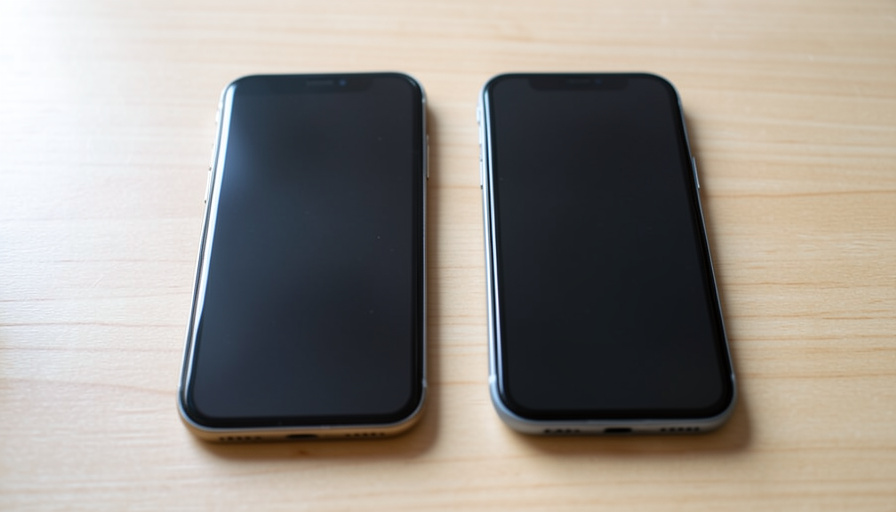
    An older phone and a newer phone lying side by side on a wooden desk with blank screens

    A new phone should be a happy upgrade, right up until you realize your two-factor codes live on the old one and every account is about to ask for a number you can no longer see. Google Authenticator has a good answer to this, and it does not require the cloud: a built-in export that hands your codes to the new phone over a QR code, entirely offline. The trouble is that people do it in the wrong order, wipe or return the old phone too soon, or hit one of a few predictable snags and end up locked out anyway. Done in the right sequence, the move takes a couple of minutes and touches no server. Here is how to transfer Google Authenticator to a new phone safely, and how to get unstuck when the export does not go smoothly.

    The single rule that prevents most disasters is simple: do the transfer while the old phone still works and still has your codes, and confirm the new phone before you erase or hand back the old one. Everything below is built around that order.

    Before you start, do this first

    Install Google Authenticator on the new phone from its official app store, but do not add any accounts to it yet, since the import will bring them over. Keep the old phone charged, unlocked, and nearby, because the export is generated from it. Know what carries over: only the accounts stored inside Google Authenticator transfer, not codes kept in other apps or accounts secured by text-message codes. And decide your method now. The offline QR export needs no account and no internet, while Google’s newer optional cloud sync backs your codes up to your Google account instead. This guide uses the offline export, which keeps everything on your two devices.

    A person holding two smartphones, one in each hand, ready to transfer between them
    The golden rule: move the codes while the old phone still works, and verify the new phone before you wipe the old one.

    Table of Contents

    Toggle
    • Before you start, do this first
    • The offline transfer, step by step
    • If you have a lot of accounts
    • Verify the new phone before you wipe the old one
    • When the offline transfer is not possible
    • Common problems and quick fixes

    The offline transfer, step by step

    On the old phone, open Google Authenticator and tap the menu, then choose Transfer accounts and Export accounts. The app asks you to confirm with your fingerprint or lock-screen PIN before it will show anything, which is a safety step, not a glitch. Next it lets you tick the accounts you want to move, all of them by default, and then it displays a QR code. On the new phone, open Google Authenticator, tap the plus button, choose Import accounts and then Scan QR code, and point the camera at the old phone’s screen. The accounts appear on the new phone within seconds, still generating the same codes. Menu wording shifts a little between app versions and between Android and iPhone, but the path is always export on the old, import on the new. Google’s own Authenticator help shows the current screens if yours look different.

    A person holding a smartphone in both hands and tapping the screen
    Export on the old phone, import on the new one. The whole exchange happens between the two devices with no server in between.

    If you have a lot of accounts

    The export is not always a single QR code. Google Authenticator packs a limited number of accounts into each code, around ten, so if you protect many accounts you will get a series of QR codes to scan one after another, and the iPhone app tends to split them more aggressively. Scan each one in turn until the new phone has them all. One detail matters here: Google does not let you regenerate the exact same export later, so before you scan, take a screenshot of each QR code as a temporary safety net, and delete those screenshots once the move is confirmed. That way a mid-scan interruption does not strand you.

    Verify the new phone before you wipe the old one

    This is the step people skip and regret. Before you factory-reset, sell, or return the old phone, prove the new one works. Pick one important account, log out and back in on a computer or another device, and complete its two-factor prompt using the code now showing on the new phone. If it accepts the code, the transfer took. Only then should you retire the old phone. Keeping it intact and in your hands until you have confirmed at least one or two logins is the difference between a clean upgrade and a frantic recovery. There is no rush to erase the old device the same day.

    Close-up of hands holding a smartphone with a blank screen and tapping it
    Confirm at least one login with a code from the new phone before you erase or return the old device.

    When the offline transfer is not possible

    The QR export only works if the old phone still functions and shows the codes. If that phone is already lost, broken, or wiped, there is nothing to export from, and the path changes. If you had turned on Google Authenticator’s optional cloud sync earlier, sign into the app with the same Google account on the new phone and your codes should restore. If you did not, you cannot recover the codes from the app itself. Instead you recover each account individually: use the backup or recovery codes you saved when you first set up two-factor, or go through each service’s account recovery process to disable and re-enable two-factor on the new phone. It is slower, which is exactly why doing the transfer before the old phone is gone matters so much.

    Common problems and quick fixes

    A few snags come up repeatedly. If the new phone will not scan the QR, turn up the old phone’s screen brightness, hold it steady, and make sure you chose Scan QR code rather than manual entry. If only some accounts came across, you likely had multiple export QR codes and missed one, so run the export again and scan every code it produces. If the codes on the new phone are rejected as wrong even though they look right, the usual cause is the phone’s clock: set the date and time to update automatically, since these codes are time-based and a drifting clock produces codes the server will not accept. And remember that moving to a new phone does not change the accounts themselves, so if one service still shows the old device, remove it in that account’s security settings once the new phone is confirmed.

    Two-factor protects your most sensitive accounts, so treat this carefully. App menus and steps differ across versions and between Android and iPhone, keep your saved backup codes somewhere safe as a fallback, and never wipe the old phone until you have logged into at least one account with the new one. When money or identity is involved, verify each critical account rather than assuming the batch moved.

    What To Know

    • Google Authenticator moves codes to a new phone offline with a built-in QR export, no cloud or internet required.
    • Export on the old phone through Transfer accounts, then Import accounts and scan the QR on the new phone.
    • Many accounts produce several QR codes, around ten each, so scan them all, and screenshot them as a temporary backup.
    • Verify a real login with a code from the new phone before you factory-reset, sell, or return the old one.
    • If the old phone is already gone, restore only works if you had cloud sync on; otherwise recover each account with its backup codes.

    Frequently Asked Questions

    Can I move Google Authenticator without a cloud backup?

    Yes. Google Authenticator has an offline export that transfers your codes directly from the old phone to the new one over a QR code, with no Google account or internet involved. On the old phone, open the menu and choose Transfer accounts, then Export accounts, and on the new phone choose Import accounts and scan the code. Cloud sync is a separate, optional feature. The QR method keeps everything between your two devices, which is the private way to migrate if you prefer not to store codes in the cloud.

    Do I need my old phone to transfer Google Authenticator?

    For the offline QR method, yes. The export is generated on the old phone and scanned by the new one, so the old device has to work and display the QR code. This is why you should transfer before you wipe or return it. If the old phone is already lost or broken, the only app-based recovery is Google Authenticator’s optional cloud sync, and that works only if you had turned it on beforehand. Otherwise you recover each account through its own backup codes or account recovery.

    Why do the codes on my new phone not work?

    The most common reason is the phone’s clock. Authenticator codes are time-based, so if the new phone’s date and time are off, the codes it shows will be rejected as invalid even though they look normal. Go into the phone’s settings and set the date and time to update automatically over the network, then try again. If only some accounts fail, you may have missed one of several export QR codes, so re-run the export and scan every code it generates.

    Does the offline export move all my accounts at once?

    It moves the ones you select, and by default that is all of them, but they may be split across multiple QR codes. Google Authenticator packs roughly ten accounts into each export code, so a large collection produces a sequence of codes rather than one. Scan them in order until every account appears on the new phone. Only accounts stored inside Google Authenticator transfer this way; codes you keep in other apps, or accounts protected by text-message codes, are not part of the export.

    Is it safe to keep both phones set up during the move?

    Yes, and it is the recommended approach. Having the codes on both the old and new phone for a short window is exactly what lets you verify the new device before retiring the old one. Once you have logged into a couple of accounts with the new phone and confirmed it works, wipe the old phone or remove Google Authenticator from it. Leaving codes on a phone you are about to sell or recycle is the only risk, so make erasing the old device the final step, not the first.

    What To Do Next

    Set up Google Authenticator on the new phone, run the export from the old one, scan every QR code, and confirm a real login before you erase anything. If you are still choosing between apps, see our comparison of Google versus Microsoft Authenticator for moving 2FA without cloud backup, and read up on the ways authenticator backups quietly fail so you are not caught out. The technology section has more on keeping access to your accounts through a phone upgrade.


    Tagged: 2FA Account Security Google Authenticator New Phone Setup Two-Factor Authentication
    About the Author

    Simran Kaur

    Simran Kaur explores culture, society, food, festivals, and the small details that shape modern identity. Her writing connects everyday experiences with wider cultural shifts.

    Related Stories

    A concerned traveler at a cafe holding a smartphone with a blank screen beside a passport and coffee

    Which 2FA Methods Survive an eSIM Carrier Switch

    November 4, 2026September 25, 2026
    A person on a sofa holding a smartphone with a blank screen and a frustrated expression

    How to Stop the Apple ID Sign-In Loop

    November 1, 2026September 25, 2026
    A person at a desk looking at a laptop with a blank screen and a frustrated expression, a phone on the desk beside them

    Why Your Password Reset Email Isn’t Arriving

    October 30, 2026September 24, 2026
    A person signing in on a laptop with a blank screen and a smartphone lying beside it on a clean desk

    7 Password Manager Alternatives With Strong Passkey Support

    October 29, 2026September 24, 2026
    A person logging into a laptop with a blank screen while a smartphone rests on the desk beside it

    iCloud Keychain vs Google Password Manager on Windows 11

    October 28, 2026September 24, 2026
    A person at a laptop on a desk signing in, with a coffee mug and plants in a bright home office

    How to Switch to Passkeys on Windows 11 Safely

    October 25, 2026September 24, 2026

    Leave a Reply Cancel reply

    You must be logged in to post a comment.

    Read Next

    A person at a bright minimal desk using a laptop with a blank screen beside a small plant

    10 Browsers Where Extension-Based Ad Blocking Still Works

    November 4, 2026September 25, 2026

    Chrome’s move to Manifest V3 quietly weakened full ad-blocker extensions like uBlock Origin, so the browser you run now decides whether your blocker keeps its teeth. Here are ten browsers where extension-based ad control still holds up, split honestly between those that run the full extension and those that lean on built-in blocking.

    A person at a desk holding a smartphone with a blank screen beside an open laptop with a blank screen

    How to Switch From Google Photos to Ente on Android

    November 2, 2026September 25, 2026

    Moving your photos from Google Photos to the encrypted Ente app is doable, and your own library transfers well. The part that trips people up is shared albums, which do not carry over the way you would hope. Here is the honest, step-by-step way to migrate on Android and rebuild your shared albums on the other side.

    A person wearing a headset at a home-office desk writing in a notebook beside a laptop with a blank screen

    10 AI Meeting Notes Tools With No Bot in the Call

    November 2, 2026September 25, 2026

    You do not want a strange notetaker bot popping into the call and announcing it is recording, and plenty of companies now block them outright. The good news is that a whole set of tools capture meeting notes without ever sending a participant into the room. Here are ten that work through your platform or your own device instead.

    A person reviewing a printed document covered with black redaction bars beside a laptop with a blank screen and a phone

    8 Screenshot Tool Alternatives That Auto-Redact Sensitive Info

    October 31, 2026September 24, 2026

    You screenshot a receipt or a support chat to share it, and only later notice the account number, email, or face sitting in plain view. Manually blurring works until you miss one. These eight tools go further, detecting sensitive details for you, though only some truly automate it. Here is how each redacts, and which fits your privacy needs.

    More

    Recent Articles

    A person on a couch looking annoyed at the smartphone in their hand

    8 Red Flags a News-Alert App Is Adware

    A traveler with a backpack standing on a city sidewalk holding a smartphone to find their way

    5 Google Maps Alternatives That Skip Location Tracking

    A homeowner and a contractor sitting at a kitchen table reviewing renovation paperwork together

    10 Contractor Estimate Traps That Become Change Orders

    A family of four with suitcases walking together through a bright airport terminal

    TSA PreCheck vs Global Entry for Traveling Families

    A person on a sofa holding a TV remote pointed at a wall-mounted television with a blank screen in a cozy living room

    How to Fix Missing Captions on Live News Streams

    A concerned traveler at a cafe holding a smartphone with a blank screen beside a passport and coffee

    Which 2FA Methods Survive an eSIM Carrier Switch

    A person at a bright minimal desk using a laptop with a blank screen beside a small plant

    10 Browsers Where Extension-Based Ad Blocking Still Works

    A young person at a gaming desk wearing a headset and using a keyboard in front of a monitor with a blank screen

    6 Discord Alternatives With Better Anti-Phishing Control

    A person in a queue at an event entrance holding up a smartphone with a blank screen toward a ticket scanner

    How to Fix a Mobile Ticket ‘Invalid Barcode’ Error

    A concerned person holding a plain payment card and a smartphone with a blank screen at a desk

    Chargeback vs Merchant Dispute for a Missing Debit Refund

    A person looking skeptically at a smartphone with a blank screen beside a laptop with a blank screen at a desk

    Free vs Paid Tools to Fact-Check Viral Screenshots

    A student writing an essay by hand in a notebook beside a laptop with a blank screen in a library

    AI Homework Detection: How Often False Flags Happen

    A person at a desk holding a smartphone with a blank screen beside an open laptop with a blank screen

    How to Switch From Google Photos to Ente on Android

    A small-business owner at a desk holding a paper receipt and using a calculator beside a laptop with a blank screen

    How to Fix Duplicate Transactions After a Payment Sync

    A person wearing a headset at a home-office desk writing in a notebook beside a laptop with a blank screen

    10 AI Meeting Notes Tools With No Bot in the Call

    Recent Comments

    • Help With Law Coursework on Benefits Of Digital Citizenship For Students
    • mTouchlabs on How to Create An Educational App From Scratch
    • Web Development on The Rise Of Artificial Intelligence: Prospects and Potential Threats
    • mekvahan on Never hesitate to service your vehicle- here are the facts
    • Maniha shah on How E-learning helps Achieving Academic Objectives?
    • Qdesq on Benefits Of Having A Virtual Office Space
    • Sekhar Sahu on 5 Modern Study Table Designs to Enhance Your Home
    • coca on 5 Design Tips for Elegant Kitchen Remodeling That You’ll Love in 2020
    • T1000 on Ads Supply Review – A Self-Service Advertising Platform
    • Techolas on Software Testing: What is It and Why You Should Be There
    #techreviews

    Topics

    • Autos
    • Business
    • Education
    • Entertainment
    • Family & Personal
    • Finance
    • Health
    • Home Improvement
    • Law
    • Lifestyle
    • News
    • Technology
    • Travel

    Archives

    • November 2026
    • October 2026
    • September 2026
    • June 2026
    • April 2026
    • January 2025
    • June 2023
    • May 2023
    • March 2023
    • February 2023
    • January 2023
    • December 2022
    • November 2022
    • October 2022
    • September 2022
    • August 2022
    • July 2022
    • June 2022
    • May 2022
    • April 2022
    • March 2022
    • February 2022
    • January 2022
    • December 2021
    • November 2021
    • October 2021
    • September 2021
    • August 2021
    • July 2021
    • June 2021
    • May 2021
    • April 2021
    • March 2021
    • February 2021
    • January 2021
    • December 2020
    • November 2020
    • October 2020
    • September 2020
    • August 2020
    • July 2020
    • June 2020
    • May 2020
    • April 2020
    • March 2020
    • February 2020
    • January 2020
    • December 2019
    • November 2019
    • October 2019
    • September 2019
    • August 2019
    • July 2019
    • June 2019
    • May 2019
    • April 2019
    • March 2019
    • February 2019
    • January 2019
    • December 2018
    • November 2018
    • October 2018
    • September 2018
    • July 2018
    • June 2018
    • May 2018
    • April 2018
    • March 2018
    • February 2018
    • January 2018
    • December 2017
    • November 2017
    • October 2017
    • September 2017
    • August 2017
    • July 2017
    • June 2017
    • May 2017
    • April 2017
    • March 2017
    • February 2017
    • January 2017
    • December 2016
    • November 2016
    • October 2016
    • September 2016
    • August 2016
    • July 2016
    • June 2016
    • May 2016
    • April 2016
    • March 2016
    • February 2016
    • January 2016
    • December 2015
    • November 2015
    • October 2015
    • September 2015
    • August 2015
    • July 2015
    • June 2015
    • May 2015
    • April 2015
    • March 2015
    • February 2015
    • January 2015
    • December 2014
    • June 2014
    • March 2013
    • February 2013

    Pages

    • Home
    • Contact

    Search

    Useful Sites

    • RunCloud
    • XE

    Stay Updated

    • Youtube
    [mc4wp_form id="2880"]

    Recent

    • How to Move Google Authenticator to a New Phone Safely
    • 8 Red Flags a News-Alert App Is Adware
    • 5 Google Maps Alternatives That Skip Location Tracking
    • 10 Contractor Estimate Traps That Become Change Orders
    • TSA PreCheck vs Global Entry for Traveling Families
    • How to Fix Missing Captions on Live News Streams
    • Which 2FA Methods Survive an eSIM Carrier Switch
    • 10 Browsers Where Extension-Based Ad Blocking Still Works
    • 6 Discord Alternatives With Better Anti-Phishing Control
    © Copyright 2026 by Visboo. All Rights Reserved.
    Go to mobile version