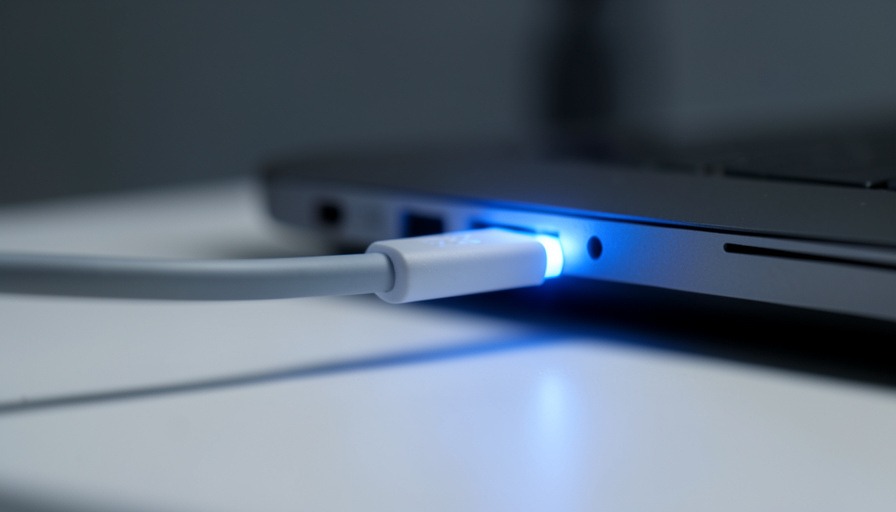
You bought the fast charger. You plugged it in. The laptop still crawls to full, or worse, quietly loses battery while you work. Before you blame the charger or the battery, look at the cable in your hand. A USB-C cable that looks identical to every other one can be quietly capping your power at a fraction of what your charger can push, and the symptoms are surprisingly easy to read.
USB-C hides its differences well. Two cables can share the same plug and the same look while one moves 240 watts and the other stops at 60. Here are seven signs the cable is the weak link, what each one tells you about the wattage it can carry, and how to fix it.
The three loudest warning signs:
- Plugged in, not charging. The laptop holds steady or drops while you use it, and only charges when asleep.
- Painfully slow gains. Twenty minutes on the charger buys you one or two percent.
- No marking on the cable. No wattage, no “E-Marker,” no lightning bolt, which usually means a 60-watt ceiling.
Quick Scan: The 7 Signs and What They Mean
| The sign | What it usually means |
|---|---|
| Plugged in, not charging | Cable can’t meet the laptop’s draw under load |
| Battery drops during heavy tasks | Delivered watts are below what the laptop uses |
| 1 to 2 percent per 20 minutes | Cable is capping wattage far below the charger |
| No e-marker or rating printed | Charging is limited to 60W (3A) as a safety default |
| “Charger not supported” notice | Cable or charger can’t meet the negotiated profile |
| Thin, long, or charge-only cable | Voltage drop or a data-limited cable starves the laptop |
| 140W+ laptop, older cable | Needs an EPR-rated cable the old one cannot provide |
Why the Cable Is Usually the Culprit
USB-C power delivery is a negotiation. Your charger, your laptop, and the cable between them agree on the highest voltage and current all three can safely handle, and the weakest link sets the ceiling. That link is most often the cable, because cables carry a hidden identity that most people never check.
The key part is a tiny chip called an e-marker. Under the USB Power Delivery specification, any cable meant to carry more than 3 amps, which works out to more than 60 watts at 20 volts, must contain one so it can tell the charger it is rated for 5 amps, or 100 watts. When a charger queries a cable and finds no e-marker, it caps output at 60 watts as a safety measure, no matter how powerful the charger is. Newer high-wattage laptops go further and need Extended Power Range cables, which carry a special e-marker for the higher voltages that reach 140, 180, or 240 watts. A plain 100-watt cable cannot deliver that, so the system falls back to a lower speed.

1. Your Laptop Says “Plugged In, Not Charging”
This is the classic tell. The battery icon shows a plug but the percentage will not climb, or it only climbs when the laptop is asleep or the screen is off. What is happening: the cable cannot deliver enough watts to both run the laptop and charge it at the same time, so under any real load the battery stalls. The fix is to swap in a cable rated for your laptop’s full wattage and watch whether charging resumes while you work.
2. The Battery Drops While You Work, Even Plugged In
Worse than stalling is going backward. If your battery percentage falls during demanding tasks like video editing or gaming while the charger is connected, the cable is delivering fewer watts than the laptop is burning. A 60-watt cable on a 100-watt laptop will lose this race every time the processor spins up. The fix is a 100-watt or higher cable, matched to what your charger and laptop both support.
3. Twenty Minutes Buys You One Percent
Genuinely slow charging, where you gain a percent or two after twenty minutes on a charger that should be fast, points straight at a bottleneck. If the charger is rated high and the laptop supports fast charging, a cable capping the current is the usual reason. The fix is to test the same charger and laptop with a known good, properly rated cable and compare the charge rate.

4. There’s No E-Marker or Wattage Printed on It
Flip the cable over and read it. A cable built for high power usually prints its rating somewhere: a wattage like 100W or 240W, the word “E-Marker,” or a matching icon. If a cable has no marking at all, treat it as a 60-watt cable, because a charger that finds no e-marker will limit itself to 60 watts to stay safe. The fix is to buy a cable that clearly states its wattage and, for demanding laptops, says it is e-marked.
5. You Get a “Charger Not Supported” or “Low Power” Notice
Both macOS and Windows will sometimes warn you directly that the connected charger or cable is not delivering expected power. That message is a gift, because it removes the guesswork. It usually means the cable or charger cannot meet the power profile your laptop asked for. The fix is to change one piece at a time, cable first, then charger, until the warning disappears and the wattage reported in your battery settings climbs.
6. It’s a Thin, Long, or Charge-Only Cable
Not every USB-C cable is built to carry power well. Many cheap or bundled cables are charge-only, data-limited, or made with thin internal wire, and a long thin cable loses voltage over its length. That drop can be enough to knock a laptop down to a trickle. The fix is a shorter, thicker cable from a reputable maker, ideally rated for 100 watts or more, rather than whatever came free in a gadget box.

7. Your High-Wattage Laptop Needs EPR and the Cable Is Older
If you own a large gaming laptop or a big mobile workstation that ships with a 140-watt or higher charger, an ordinary cable will not cut it. Those chargers use Extended Power Range, which needs a cable carrying an EPR e-marker rated up to 240 watts. A perfectly good 100-watt cable from a couple of years ago simply cannot pass that much power, so the laptop quietly charges at a reduced rate. The fix is a cable explicitly labeled for 240 watts, matched to your EPR charger.
How We Chose These
We focused on signs a normal user can notice without a meter or a teardown, then tied each one to the specific cable capability behind it, so the symptom points to a fix rather than just a frustration. The technical basis comes from how USB Power Delivery negotiates voltage and current, the e-marker rules that gate anything above 60 watts, and the Extended Power Range specification that governs 140-to-240-watt charging. We prioritized the tells that show up in everyday use, like stalled charging and slow gains, and left out anything that requires a USB power analyzer to see.
The Bottom Line
When a laptop charges slowly or not at all over USB-C, the cable is the first suspect, not the charger or the battery. The pattern is consistent: an unmarked cable caps at 60 watts, a 100-watt cable cannot feed a 240-watt laptop, and a thin or damaged cable leaks voltage along the way. Read the rating printed on your cable, match it to what your charger and laptop support, and keep one known-good, fully rated cable around to test with. That single spare cable will answer the question faster than anything else. For more device fixes, browse our technology section and lifestyle section.

Frequently Asked Questions
Why won’t my USB-C cable deliver full power to my laptop?
Most often the cable is rated below what your laptop needs. USB-C cables without an e-marker chip are limited to 60 watts, and high-wattage laptops need Extended Power Range cables rated up to 240 watts. If the cable is thin, long, charge-only, or simply not marked, it can cap charging far below your charger’s ability. Swapping in a properly rated cable usually fixes it.
What is an e-marker and why does it matter?
An e-marker is a tiny chip inside a USB-C cable that tells the charger and laptop how much current the cable can safely carry. The USB standard requires one in any cable rated above 3 amps, which is 60 watts at 20 volts. If a charger queries the cable and finds no e-marker, it caps output at 60 watts as a safety measure, even if the charger and laptop could do far more.
How do I know how many watts my USB-C cable supports?
Check the cable for printed markings such as 60W, 100W, or 240W, or the word “E-Marker.” Reputable cables list this near the connector or on the packaging. If there is no marking at all, assume it is a 60-watt cable. For laptops that ship with a 140-watt or larger charger, look specifically for a cable labeled 240W, which carries the Extended Power Range e-marker those chargers require.
Can a bad cable damage my laptop?
A quality cable that is simply underrated will not damage your laptop; it just charges slowly because the system negotiates a safe, lower power level. The real risk comes from poorly made cables that ignore the standard and misreport their rating, which is why buying from a reputable maker matters. Certified cables from known brands are the safe choice for high-wattage charging.
Is the charger or the cable more often the problem?
For slow or failed USB-C charging, the cable is the more common culprit, because a cable’s rating is invisible and easy to overlook while a charger’s wattage is usually printed on it. If your charger clearly matches your laptop’s needs but charging is still slow, test a different, properly rated cable before replacing the charger.