Your child brings home a new school communication app, and before it shows a single announcement it asks for location, contacts, the camera, the microphone, and permission to track them for ads. Most of that it does not need. Here are ten permissions to refuse the moment it installs.
School apps have quietly become data-hungry. A tool that mainly sends you homework reminders or lunch balances often requests the same sweeping access as a social network, and once you tap “Allow,” that access runs in the background all year. The good news is that almost none of it is required for the app to work, and denying a permission rarely breaks anything important. Federal rules now demand separate parental consent before a child’s data is shared for targeted advertising, but the fastest protection is the one you control: the permission prompts on the phone. Here are the ten to say no to, and how.
The three to refuse without a second thought:
- Precise Location — a homework app does not need your child’s exact coordinates.
- Contacts — no school app needs your entire address book.
- Ad Tracking — always choose “Ask App Not to Track.”
Quick reference: 10 permissions and what to do
| Permission | Why refuse it | Safer setting |
|---|---|---|
| Precise Location | Exposes exact coordinates | Approximate, or Never |
| Always/Background Location | Tracks when app is closed | While Using at most |
| Contacts | Harvests your address book | Deny |
| Microphone | Enables silent listening | Deny until a feature needs it |
| Camera | Always-on access is risky | Ask each time |
| Full Photo Library | Reads every photo you have | Selected Photos only |
| Ad Tracking | Feeds ad profiles of a child | Ask App Not to Track |
| Bluetooth | Can enable proximity tracking | Deny unless required |
| Calendar | Reads and writes your events | Deny unless you want sync |
| Local Network | Scans your home devices | Deny unless required |
Table of Contents
1. Precise Location

Precise Location gives an app your child’s exact GPS position, down to a few meters. A homework, grading, or messaging app has no legitimate need for that, and exact location is some of the most sensitive data a phone holds, especially for a minor. The narrow exception is a bus-tracking feature, and even then approximate location usually suffices.
What to do: On iPhone, open Settings, tap the app, choose Location, and turn off “Precise Location,” or set it to Never. On Android, go to Settings, Apps, the app, Permissions, Location, and choose “Approximate” or “Don’t allow.”
2. Always or background location
Worse than precise location is location set to “Always,” which lets the app follow your child even when the app is closed and sitting in the background. That is a continuous trail of where they go, built for a tool they open twice a week. No school app needs to know your child’s whereabouts around the clock.
What to do: Never grant “Always.” If the app has a genuine live feature, set location to “While Using the App” so it only sees anything while your child has it open. Both iPhone and Android offer this middle option in the app’s location settings.
3. Contacts
When an app requests Contacts, it wants to copy your entire address book, every name, number, and email you have stored, often to build a social graph or invite others. A school app has no reason to read your personal contacts, and handing them over exposes people who never agreed to anything.
What to do: Deny it outright. If the app claims it needs contacts to add a teacher or classroom, you can enter those details manually. On both platforms, leave the Contacts permission off in the app’s settings.
4. Microphone

Microphone access lets an app listen through the device, and while most apps use it responsibly, there is rarely a reason a school communication app needs it at all. Granting it as a default leaves an open door, and a child may not notice or think to question it.
What to do: Deny the microphone by default. If a specific feature genuinely needs it, such as recording a voice message to a teacher, enable it just before using that feature and switch it back off afterward. Check the app’s microphone toggle in Settings on either platform.
5. Camera
The camera is often needed for real tasks, like a student photographing homework to submit it, so this one is about control rather than a flat refusal. The problem is always-on access, which means the app can use the camera any time it is open, well beyond the moments your child actually chooses to take a photo.
What to do: Set the camera to “Ask Next Time” on iPhone so it prompts each time, rather than granting standing access. On Android, choose “Ask every time” in the app’s camera permission. That keeps the feature available while removing the blanket allowance.
6. Full photo library
Many apps ask for access to your photos so a student can attach an image, but the default request is usually for your entire library. That means the app can read every photo on the device, including family pictures and screenshots that have nothing to do with school.
What to do: Grant “Selected Photos” on iPhone or “Only selected photos” on Android, choosing just the images your child needs to share. Modern phones make this the easy default if you look for it, and it fully solves the problem while keeping the upload feature working.
7. Ad tracking and the advertising ID

This is the one that turns a child into an advertising profile. When an app asks to track you across other apps and sites, saying yes lets it link your child’s activity to an advertising identifier and share it with data brokers. Federal rules now require separate parental consent before a child’s information is used for targeted ads, but the phone gives you a direct off switch.
What to do: On iPhone, always choose “Ask App Not to Track” when prompted, and turn off “Allow Apps to Request to Track” in Settings, Privacy, Tracking to block the prompt entirely. On Android, open Settings, Privacy, Ads, and delete or reset the advertising ID, then opt out of ad personalization.
8. Bluetooth
Bluetooth access seems harmless, but it can let an app detect nearby devices and beacons, which is a quiet form of proximity and location tracking. Unless the app has a clear, stated feature that relies on it, such as a specific on-campus check-in, a communication app does not need to see your child’s Bluetooth surroundings.
What to do: Deny Bluetooth in the app’s permissions unless you know exactly why it needs it. You can always enable it later if a feature you actually use stops working. Both iPhone and Android list Bluetooth as a per-app toggle.
9. Calendar
A calendar permission lets the app read your existing events and write new ones, which is more access than it sounds. While syncing school dates can be convenient, granting full calendar access exposes your family’s entire schedule, and many apps request it when a simple export link would do.
What to do: Deny calendar access unless you specifically want the app to add school events, and even then consider adding a subscribed calendar link instead. If you do allow it, review periodically what the app has written. The toggle sits in the app’s permission list on both platforms.
10. Local network access

On iPhone especially, apps ask for Local Network access, which lets them scan the other devices on your home Wi-Fi. Some legitimately use it to connect to classroom hardware, but for a messaging or grading app it is usually unnecessary, and it reveals a map of the gadgets in your house.
What to do: Deny Local Network access in the app’s settings unless a required on-campus feature genuinely needs it. If something stops working later, you can turn it back on. On Android, watch for the similar “nearby devices” permission and treat it the same way.
How to review permissions in five minutes
You do not have to do this app by app from memory. Both phones let you audit everything at once:
- On iPhone, open Settings, then Privacy and Security, and tap each category, such as Location or Contacts, to see every app that has access and switch off the ones that should not.
- On Android, open Settings, then Security and Privacy, then Privacy, then Permission Manager, and review each permission to see which apps hold it.
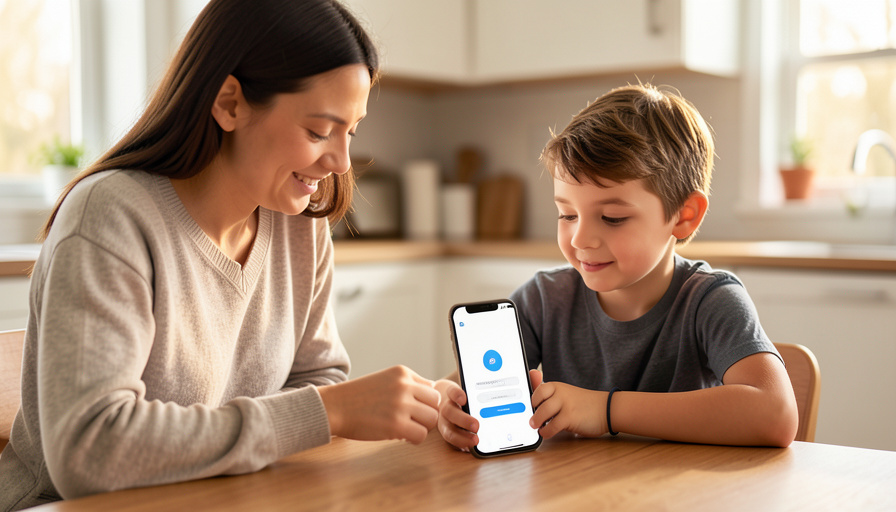
- Do it together. Sit with your child and explain why you are turning things off, so they learn to question these prompts themselves.
- Recheck after updates. App updates sometimes add new permission requests, so a quick review each term is worthwhile.
How We Chose These
We focused on the permissions that school and education apps most often request without a clear need, and that carry the most privacy risk for a child, such as precise and background location, contacts, and ad tracking. We prioritized permissions a parent can safely refuse or limit without breaking the app’s core purpose, and we noted the narrow cases where a permission is legitimate so you can make an informed call rather than a blanket one. The aim throughout was practical control, giving you the exact setting to change rather than a general warning.
App requests and settings vary by app and by phone, and this is general guidance, not legal advice. Check each app’s privacy policy and your school’s data practices, and confirm with the school before disabling anything tied to a feature you rely on.
The Bottom Line
A school app should earn every permission it asks for, and most of the sensitive ones it does not. Refuse precise and background location, contacts, the microphone, ad tracking, Bluetooth, calendar, and local network by default, and limit the camera and photos to per-use or selected access. Denying these rarely breaks anything, and it keeps a child from becoming a data point. Spend five minutes in your phone’s privacy settings on day one, and do it alongside your child so the habit sticks. For the bigger picture, see our roundup of student data privacy statistics, and browse Visboo’s Family & Personal section for more. The FTC’s guide to protecting your child’s privacy online is a useful companion.
Frequently Asked Questions
Which school app permissions should parents refuse first?
Refuse precise location, contacts, and ad tracking immediately, since a school app almost never needs your child’s exact whereabouts or your address book, and tracking turns a minor into an advertising profile. After those, deny the microphone, Bluetooth, calendar, and local network by default, and limit the camera and photos to per-use or selected access.
Will denying permissions stop the school app from working?
Usually not. Most school apps function fine for announcements, grades, and messaging without location, contacts, the microphone, or tracking. If a specific feature you actually use stops working, you can enable just that one permission. Denying by default and allowing only what is needed is the safest approach.
Why does a school app ask for my child’s location?
Sometimes for a genuine feature like bus tracking, but often to collect data that has commercial value. A homework or messaging app does not need location to work. Unless there is a clear, stated reason, set location to Never or Approximate, and never allow the “Always” background option.
Is it safe to let a school app track my child for ads?
No. Allowing tracking lets the app link your child’s activity to an advertising identifier and share it with third parties. Federal rules require separate parental consent before a child’s data is used for targeted advertising, so always choose “Ask App Not to Track” and opt out of ad personalization in your phone’s settings.
How do I check what permissions an app already has?
On iPhone, open Settings, then Privacy and Security, and review each category to see which apps have access. On Android, open Settings, then Security and Privacy, then Permission Manager. Both let you audit every permission in one place and switch off anything an app should not have.
Should I set up permissions on my child’s device or mine?
On whichever device runs the school app. If your child uses their own phone or tablet, review the settings on that device, ideally together so they understand why. If the app is on your phone, secure it there. Either way, revisit the permissions each term, since updates can add new requests.